If Google decides your site was hacked or is serving something harmful, three things happen at once: Chrome and other browsers can show visitors a red warning, Search can label your results, and AdSense won't serve ads on those pages. The way back is always the same: clean the whole site, close the hole the attacker used, then ask Google to check again, first in Search Console, then in AdSense if ads were affected.
The order matters more than the tools. Most "my review was rejected" stories start with a restore from backup and a review request the same afternoon, while the vulnerability is still open.
Signs your site was hacked
The Security issues report in Search Console
This is the official signal. The Security issues report help page says: "If a Google evaluation determines that your site was hacked, or that it exhibits behavior that could potentially harm a visitor or their computer, the Security issues report will show Google's findings." It sits in the Search Console sidebar under Security & Manual Actions.
The issues it lists use names like "Hacked: Malware", "Hacked: Code injection", "Hacked: Content injection" and "Hacked: URL injection", plus "Deceptive pages" for phishing and social engineering. Each one shows the date Google first saw it and some sample URLs. Treat the samples as samples: Google says the list "is not necessarily complete".
A browser warning you can't always see
Google's help is blunt about this: "Google SafeBrowsing displays warnings to users based on the browsing context. Therefore you may or may not be able to reproduce the warnings. However, you should rely on the Security Issues report as the source of truth." You can also look up your domain in Google's Safe Browsing site status page.
The Japanese keyword hack
Google's guide to this hack describes it as new pages "with autogenerated Japanese text on your site in randomly generated directory names (for example, http://example.com/ltjmnjp/341.html)", monetised with affiliate links to fake brand goods. Two details make it nasty. The attacker "will typically add themselves as a property owner in Search Console", and the pages can show you a 404 while showing Google spam: "Don't be fooled! Hackers will try to trick you into thinking the page is gone or fixed when it's still hacked."
Search site:example.com and page through the results. Unfamiliar URLs with Japanese or Chinese titles on an English or Turkish site are the giveaway.
Spam redirects only on mobile
On desktop everything looks fine. On a phone coming from Google, visitors land on a betting or scam page. Google's post on sneaky mobile redirects names two causes: "if your website has been hacked, a potential result can be redirects to spammy domains for mobile users only", and ad scripts: "A script/element installed to display ads and monetize content might be redirecting mobile users to a completely different site without the webmaster being aware of it." A sudden drop in time on site for mobile visitors only is one of the signals it suggests watching.
A hijacked third-party script
Sometimes your server is clean and a script you load from someone else isn't. The best-known case is polyfill.io. Cloudflare reported that on June 25, 2024 "the polyfill.io service was being used to inject nefarious code that, under certain circumstances, redirected users to other websites." Old themes and plugins still reference it. Search your theme and plugin files for the script host and remove it.
Other things you might notice
- Admin users you didn't create.
- A sitemap you didn't add, or URLs in yours you never published.
- Pages with pharma, casino or "free generator" wording that nobody on your side wrote.
- A crypto miner: CPU at 100% on visitors' machines while the page is open.
- Your host suspending the account for sending spam.
Look at the infected pages safely
Google recommends you "Avoid using a browser to directly view infected pages on your site", both because malware targets browsers and because hacks often hide from site owners. Use the URL Inspection tool in Search Console to see what Googlebot gets, and curl to see what different visitors get. Pretend to be a phone that came from Google:
curl -sI -e "https://www.google.com/" \
  -A "Mozilla/5.0 (iPhone; CPU iPhone OS 17_0 like Mac OS X) AppleWebKit/605.1.15 (KHTML, like Gecko) Mobile/15E148" \
  https://example.com/some-post/
A 301 or 302 with a location: pointing to another domain is the redirect. Then fetch the HTML the way Googlebot does and look for spam words and scripts:
curl -s -A "Mozilla/5.0 (compatible; Googlebot/2.1; +http://www.google.com/bot.html)" \
  https://example.com/ | grep -ioE "viagra|casino|bet[a-z]*|<script[^>]+src=[^>]+"
Google's own help suggests the same kind of search: look for "eval", "base64_decode" and "unescape" in your responses and files.
The cleanup order
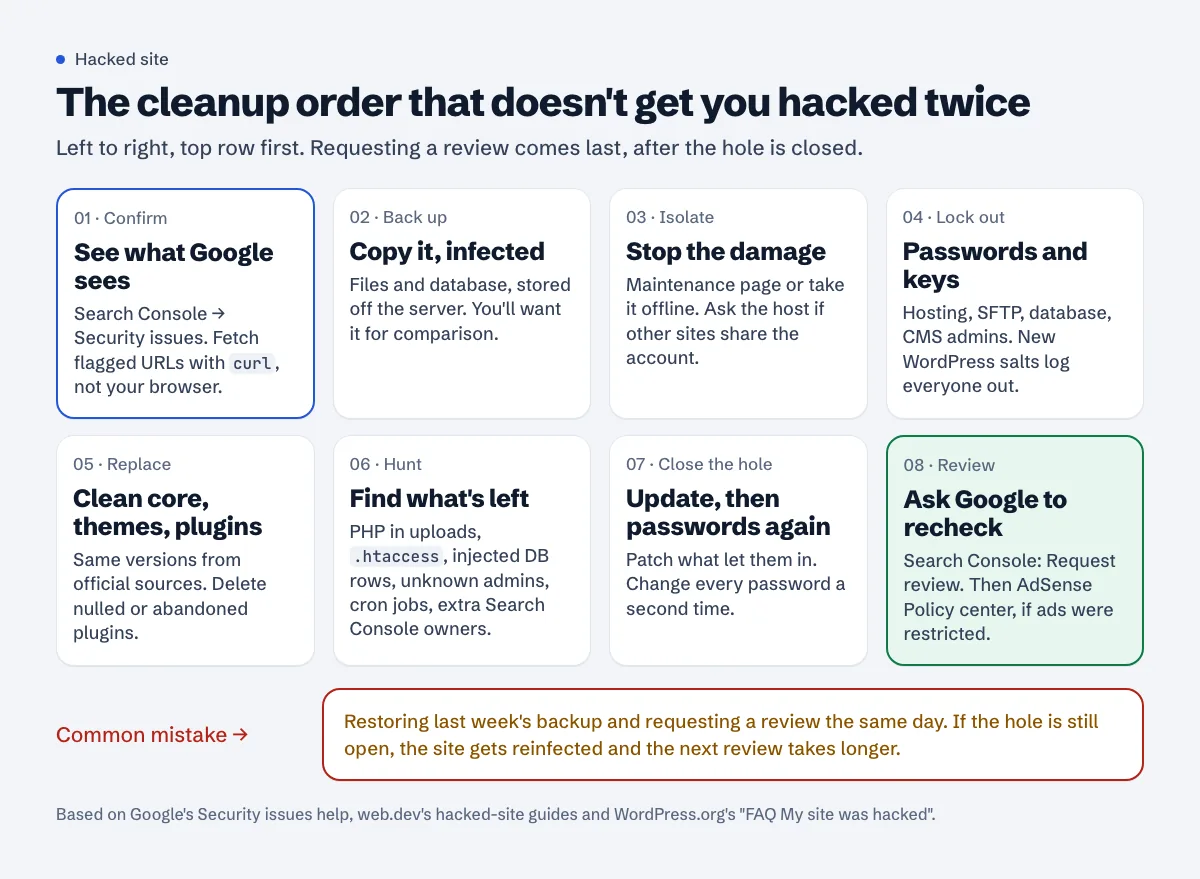
1. Back up, including the infected copy
Before you delete anything, copy the files and the database somewhere off the server. Google's guide: "make an offline copy of any files before you remove them, in case you need to restore them later... If you're using a CMS, also back up the database." WordPress.org's hacked-site FAQ recommends taking "one more snapshot of the environment. Even if it's infected". File dates in that copy tell you when they got in.
2. Isolate the site
Google's quarantine article says to take the site offline, for example by pointing DNS at "a static page on a different server that uses a 503 HTTP response code", and notes that a 503 from the infected server itself isn't enough, because "Harmful content can still be returned to users with these status codes." It also says that taking the site offline temporarily during recovery is unlikely to affect its future ranking. On shared hosting, tell your host: other sites in the same account may be infected too.
3. Lock the attacker out
Change every password that touches the site: hosting panel, SFTP/FTP, database user, every CMS administrator, and the e-mail account that can reset them. In WordPress, generate new secret keys in wp-config.php; WordPress.org explains this "will force anyone that might still be logged in off." In Search Console, open Settings > Users and permissions and remove any owner you don't recognise, along with their verification file or .htaccess rule.
4. Replace core, themes and plugins with clean copies
Reinstall from official sources, at the same versions you run. WordPress.org's FAQ warns: "be sure not to use the reinstall options in your WP-ADMIN... those installers often only overwrite existing files, and hacks often introduce new files". Replace /wp-admin and /wp-includes completely. Delete plugins and themes you don't use, and anything "nulled" (a pirated premium plugin): these are a common way in, and you can't verify them.
5. Hunt for what's left
This is the slow part. The commands below cover most WordPress cases; other CMSs have equivalents.
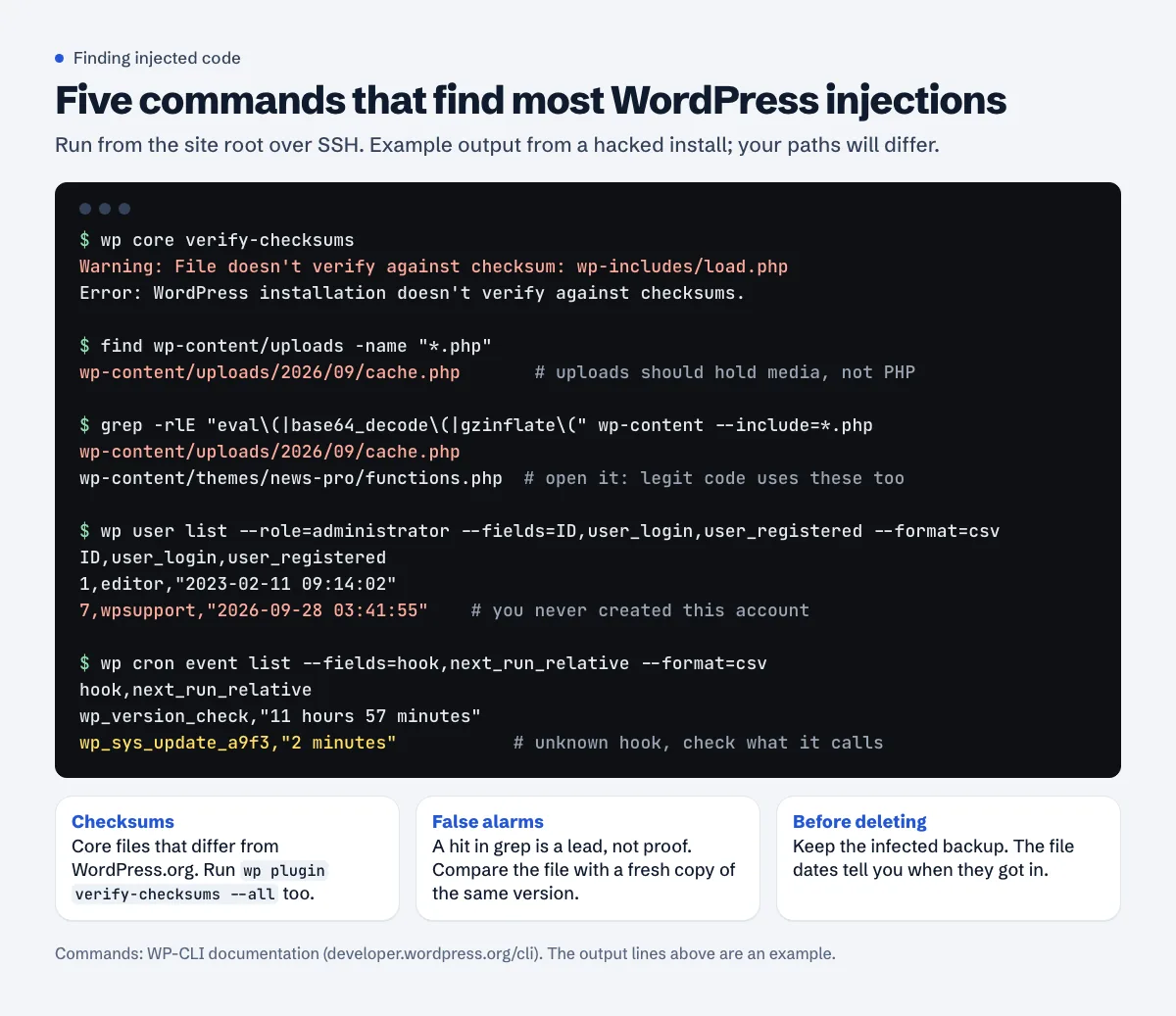
What to check, in roughly this order:
- Core and plugin checksums.
wp core verify-checksumsandwp plugin verify-checksums --allcompare your files with WordPress.org's (WP-CLI docs). - PHP where it doesn't belong.
wp-content/uploadsshould hold media. Any.phpthere deserves a close look. - Obfuscated code. Google's guide lists "base64_decode, rot13, eval, strrev, or gzinflate" and notes "Attackers commonly inject scripts into the following files: index.php, wp-load.php, 404.php, and view.php." WordPress.org adds
header.php,footer.phpand the theme's functions file. .htaccess. "Unless you have custom .htaccess rules, consider replacing your .htaccess with a completely new copy." Check every.htaccess, not just the root one.- The database. Injected
<script>tags in posts and options, spam pages stored as posts, asiteurlorhomevalue that isn't yours. - Users and scheduled jobs.
wp user list --role=administratorandwp cron event list, plus the server's own crontab (crontab -lfor the site user). - Sitemaps. Google notes that hackers "often modify your sitemap or add new sitemaps to get their URLs indexed more quickly."
Spam pages the attacker created should return 404 or 410 once deleted. Google's cleanup article says that if you delete them "and then configure your server to return a 404 status code, the pages will naturally fall out of Google's index with time"; the Removals tool in Search Console is optional and only for pages "you'll never want to appear in results." Our soft 404 guide explains why "deleted" must not mean "redirected to the homepage".
6. Close the hole, then change the passwords again
Update the CMS, plugins, themes and PHP. If you can work out how they got in (an outdated plugin, a reused password, an exposed admin panel), fix that specifically. WordPress.org's FAQ has a heading for the last step: "Change the passwords again!" Anything you changed while the site was still infected may have been captured.
If you run your own VPS, also check SSH: keys only, no password logins, a firewall in front. The SSH and UFW guide and fail2ban guide cover that.
Request a review in Search Console
Only when every issue is fixed on every page. Google's request a review article lists the prerequisites: ownership verified in Search Console, the site cleaned, the vulnerability corrected, the clean site back online. Check that the pages aren't blocked: "Your pages must be available to be crawled by Googlebot". A leftover noindex or robots.txt block from the cleanup will fail the review.
The steps from the Security issues help:
- Open the Security issues report and expand each issue.
- Fix it everywhere: "Fixing the issue on just some pages will not earn you a partial return to search results."
- When all issues are fixed, "select Request Review in the Security Issues report."
- Describe what you did. Google says a good request "Explains the exact quality issue on your site", "Describes the steps you've taken to fix the issue" and "Documents the outcome of your efforts."
An example of the level of detail Google suggests: "For Content injection hacked URLs, I removed the spam content and corrected the vulnerability by updating an out-of-date plugin."
How long it takes, per Google: reviews for sites "hacked with spam can require up to several weeks", malware reviews "require a few days", phishing reviews "take about a day". After a successful review, "warnings from browsers and search results will be removed within 72 hours." Don't send a second request while the first is pending; Google says that "can cause longer turnaround time for the next request, or even get you marked as a repeat offender."
Then fix AdSense
Hacked pages hit AdSense directly. The Publisher Policies say you must not "place Google-served ads on screens that contain malicious software or "malware"" (malware or unwanted software), and the AdSense Program policies say sites "may not change user preferences, redirect users to unwanted websites, initiate downloads, include malware".
If your site was already approved and the Policy center shows an issue, the steps from Google's Fix policy issues page are:
- Sign in to AdSense and click Policy center.
- Click Fix next to the site.
- In the "Issues found" section, click Start review process.
- Pick Fixed the violations as the reason, tick the confirmation box and click Request review.
Google notes: "You must request a review for each site with policy enforcement(s) in your Policy center for ad serving to continue on that site." The Start review process button can be greyed out if the site "has been reviewed and rejected several times recently", which is one more reason to wait until the Search Console review has passed.
If you were still applying, a hacked site will usually come back as a policy violations rejection. The policy violations guide covers what to do on the Sites page.
Keep it from happening again
- Update weekly, and remove plugins and themes you don't use.
- Turn on two-factor login for the CMS, hosting panel and the e-mail that resets them.
- Keep off-server backups you've actually tested restoring.
- Add security headers; a Content Security Policy limits which domains can run scripts on your pages. Check what you send now with the free security headers checker, and see security headers for blogs for a safe AdSense setup.
- Watch for changes you didn't make. Approvalens monitoring checks uptime, the certificate, ads.txt and crawler access and e-mails you when something changes.
Find signs of a hack before Google does
A free Approvalens scan checks your Safe Browsing status, looks for injected spam pages in your sitemap, cryptominers and scripts loaded from hijacked domains: scan your site.
FAQ
How long until the red warning disappears?
After the review succeeds, Google says warnings are removed "within 72 hours". The review itself takes about a day for phishing, a few days for malware and up to several weeks for spam hacks.
Can I just restore yesterday's backup?
You can, as part of step 4, but only after you know how they got in. A restored site with the same outdated plugin is often reinfected within days, and a review request on a reinfected site makes the next one slower.
Will a hack get my AdSense account banned?
Google doesn't publish how it treats publishers who were hacked. What it does document is the policy (no ads on screens with malware) and the review flow above. Clean up quickly, request the reviews and keep a record of what you did.
Do I need to remove the spam URLs from Google with the Removals tool?
No. Google calls it optional. Deleted pages that return 404 "will naturally fall out of Google's index with time." Use Removals only for spam pages you'll never want in results, never for your real pages.
Search Console shows no security issues, but users see redirects. What now?
Test on a phone from a Google result, and with curl using a mobile user agent and a Google referrer. If your server is clean, remove third-party scripts one at a time, as Google's mobile redirect post suggests, until the redirect stops. Ad and "push notification" scripts are the usual suspects; see back button hijacking for related script problems.
Spotted something out of date or wrong? Tell us and we'll correct it.
Read this guide in Turkish →Check it on your own site. Free, no sign-up.
Free tools for this
Free scan
Check your own site
The free scan reads the first 50 pages and shows your score and every problem it finds.