"No space left on device" means a write failed because the filesystem had nothing left to give. Sometimes that's bytes, sometimes it's inodes, and sometimes the space is held by a file that was deleted but is still open. The fix is always the same shape: measure, find the one or two things that grew, remove those items by name, then put a limit on whatever grew so it doesn't happen again.
What you should not do is run a blanket cleanup command and hope. More on that in the Docker section.
First, check what is actually full
Two commands, ten seconds:
df -h
df -i
df -h shows space per filesystem, df -i shows inodes (the number of files a filesystem can hold). Look at the Use% and IUse% columns for /, and for /boot and /var if they are separate mounts.
A few things that confuse people here:
Availis 0 butUse%isn't quite 100% ofSize. ext4 keeps a slice for root. The tune2fs man page describes it as space that "may only be allocated by privileged processes", reserved "to allow system daemons, such as syslogd(8), to continue to function correctly after non-privileged processes are prevented from writing", and says "Normally, the default percentage of reserved blocks is 5%." So root-owned services may keep writing for a while after MySQL, PHP and your web app (running as their own users) have already started failing.- Space is free but you still get the error. That's inodes.
df -iwill showIUse%at 100%. Millions of tiny files (PHP sessions, a cache plugin's files, a mail queue) do this. - Only
/bootis full. On older installs with a small separate/boot, old kernels fill it andaptupgrades fail. That's the kernel section below.
Find what grew
Start at the root and go down one level at a time. -x keeps du on one filesystem so it doesn't wander into /proc or other mounts:
sudo du -xh -d1 / 2>/dev/null | sort -rh | head -15
Then repeat on the biggest directory (/var, then /var/lib, and so on) until you hit something you recognise. If you'd rather click through it, ncdu does the same thing interactively (ncdu); install it with sudo apt install ncdu if there's still room for a small package, and run sudo ncdu -x /.
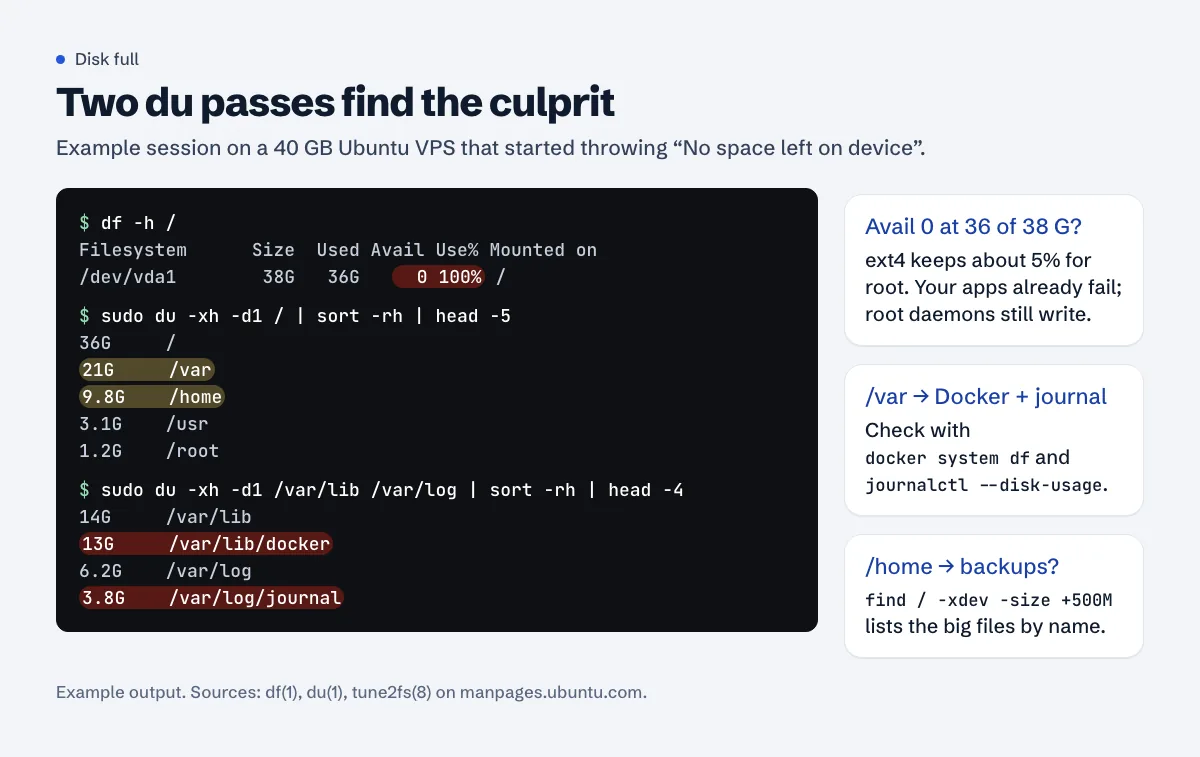
du passes are usually enough to name the culprit. Here it's Docker and the journal, with a backup folder in /home close behind.For inodes, the same idea with --inodes:
sudo du -x --inodes -d1 / 2>/dev/null | sort -rn | head -15
And to list single large files anywhere on the root filesystem (old backups and database dumps show up here):
sudo find / -xdev -type f -size +500M -exec ls -lh {} + 2>/dev/null
Write down the paths. Everything below is about deciding, item by item, which of them can go.
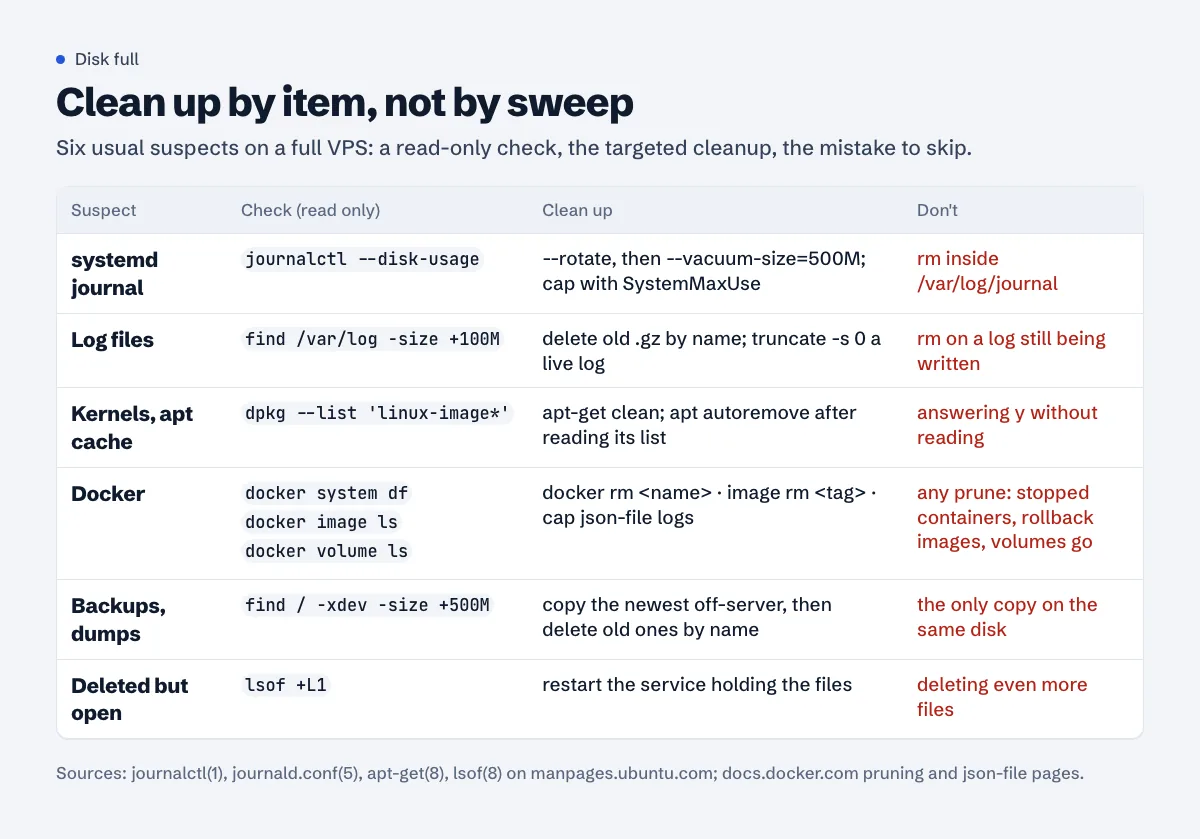
The usual suspects, and how to clean each one
The systemd journal
Check it:
journalctl --disk-usage
By default the journal can use up to 10% of the filesystem, capped at 4G (SystemMaxUse= in the journald.conf man page). On a 40 GB disk that's close to 4 GB of logs. To shrink it now:
sudo journalctl --rotate
sudo journalctl --vacuum-size=500M
The rotate matters. The journalctl man page says vacuuming "only operates on archived journal files", and --rotate marks the active files as archived first. To keep it small, add a drop-in rather than editing the main file:
sudo mkdir -p /etc/systemd/journald.conf.d
printf '[Journal]\nSystemMaxUse=500M\n' | sudo tee /etc/systemd/journald.conf.d/50-size.conf
sudo systemctl restart systemd-journald
Log files in /var/log
sudo find /var/log -type f -size +100M -exec ls -lh {} +
Old rotated files (access.log.3.gz, syslog.2.gz) can be deleted once you've looked at the list. For a log that is still being written, don't rm it: the process keeps the file open, the name disappears and the space doesn't come back (see the last suspect). Empty it in place instead:
sudo truncate -s 0 /var/log/nginx/access.log
Then find out why it got that big. Usually logrotate isn't running or has no rule for that file. systemctl status logrotate.timer shows whether it runs, and sudo logrotate -d /etc/logrotate.conf does a dry run (logrotate: debug mode means "no changes are made to the logs and the logrotate state file is not updated"). A WordPress debug.log left on in wp-content, or an app writing its own log without a rotation rule, are two common ones.
Old kernels and the apt cache
uname -r
dpkg --list 'linux-image*' | grep ^ii
du -sh /var/cache/apt/archives
sudo apt-get clean empties the package cache; per apt-get it "removes everything but the lock file from /var/cache/apt/archives/". Safe, and the packages download again if needed.
sudo apt autoremove removes packages "that were automatically installed to satisfy dependencies for other packages and are now no longer needed", which on Ubuntu includes kernels it has marked as no longer needed. Read the list it prints before you type y. If it wants to remove something you use, answer no and mark that package as manually installed with sudo apt-mark manual <package>.
If the disk filled during an upgrade, dpkg may have stopped halfway. After freeing space, run sudo dpkg --configure -a and then sudo apt -f install.
Docker: images, containers, volumes and container logs
Look first. These commands only read:
docker system df
docker ps -a --size
docker image ls
docker volume ls
sudo sh -c 'du -sh /var/lib/docker/containers/*/*-json.log' | sort -rh | head
Then remove what you can name:
docker rm old-staging-web             # a stopped container you're sure you won't start again
docker image rm myapp:2026-08-01      # an old tag you no longer roll back to
docker ps -a --filter volume=pgdata   # who uses this volume? check before removing it
docker volume rm test-uploads         # only after the line above shows nothing that matters
Why not docker system prune, docker image prune -a or docker volume prune? Because they decide for you. Docker's pruning page spells it out: docker container prune warns "This will remove all stopped containers", docker image prune -a "will remove all images without at least one container associated to them", and about volumes: "Volumes are never removed automatically, because to do so could destroy data." A database container you stopped for maintenance is a "stopped container". Once it's gone, its volume has no container left, and a volume prune treats it as unused. The image you kept for a rollback has no container either. That's how a disk cleanup turns into a restore from backup. Removing items by name takes five minutes longer and nothing surprising happens.
Container logs are the other big one. The json-file driver's max-size "Defaults to -1 (unlimited)" (JSON File logging driver), so a chatty container grows forever. Docker says those files "are designed to be exclusively accessed by the Docker daemon", so rather than truncating them by hand, set a limit in /etc/docker/daemon.json:
{
  "log-driver": "json-file",
  "log-opts": { "max-size": "10m", "max-file": "3" }
}
Restart Docker and recreate the container (docker compose up -d --force-recreate <service>). Existing containers keep their old settings until you do.
Backups and dumps in home folders
The find -size +500M list above usually shows them: backup-2026-07.tar.gz in /root, a site.sql dump in /home/ubuntu, a plugin's backup folder under wp-content. A backup on the same disk doesn't protect you from losing that disk anyway. Copy the newest one somewhere else, check that the copy opens, then delete the old ones by name. If a backup job created them, change it to keep a fixed number and to write off the server.
Deleted files that are still open
If df says the disk is full but du adds up to much less, a process is holding deleted files:
sudo lsof +L1
The lsof man page: "+L1 will select open files that have been unlinked." You'll see the process name, its PID and the size. The space comes back when that process closes the file, so restart the service (sudo systemctl restart nginx, php8.3-fpm, whichever it is). This is the classic result of someone deleting a live log with rm.
What breaks when the disk fills
Knowing this helps you check the damage after you've freed space:
- MySQL / MariaDB. For MyISAM tables and the binary log, MySQL "checks once every minute" for space and writes a warning "every 10 minutes"; during
ALTER TABLE,OPTIMIZE TABLEorREPAIR TABLEit can instead remove its temporary files and mark the table as crashed (How MySQL handles a full disk). That page covers MyISAM and the binary log; whatever the engine, read the MySQL error log after you free space and runCHECK TABLEon anything that was being altered. - PHP sessions and uploads. Sites that keep sessions in files can't log anyone in, and uploads fail. With inodes exhausted, it's often the session folder itself that caused it.
- Certificate renewals. Certbot has to write the new certificate and its logs. A renewal that runs on a full disk fails, and you find out when the old certificate expires. After cleaning up, run
sudo certbot renew --dry-run; the certificate renewal guide covers the rest. - The web server. Nginx writes its logs and, for large request bodies, temporary files to disk. Cached pages may still load while forms and uploads fail. From outside it looks like random errors; the is my website down guide and the free website down checker help separate "down" from "partly broken".
- apt and dpkg. Half-finished upgrades, covered above.
Slow pages often come before the outright failure, as the database fights for space. If that's the symptom you saw first, the slow server response guide is the other half of the story.
Stop it from happening again
The cleanups above fix today. These stop the repeat:
- Cap the journal (
SystemMaxUse=) and Docker logs (max-size). - Make sure every app log has a logrotate rule, and that
logrotate.timeris active. - Move backups off the server and keep a fixed number.
- Get told at 85-90%, not at 100%. By the time a visitor tells you, MySQL has already been waiting.
Get an e-mail before it fills
The Approvalens server agent e-mails you when a filesystem passes 90% or is on course to fill within 48 hours, and it watches inodes the same way.
FAQ
I deleted files but df still shows the disk full. Why?
A running process still has them open. Run sudo lsof +L1, find the process and restart that service. The space is released when the file is closed.
Is it safe to delete everything in /var/log?
No. Delete old rotated files (.1, .gz) after listing them, and truncate active logs with truncate -s 0. Some services fail to start if their log directory is gone.
How much free space should a small VPS keep?
There's no official number. We'd treat 80% as the point to look and 90% as the point to act, because a single backup, upgrade or log spike can use the rest in an hour.
Can I just run docker system prune?
You can, but it removes all stopped containers and dangling images without asking about each one, and with --volumes it goes further. On a server with a stopped database container or a rollback image, that's data you wanted. List with docker system df and remove items by name.
The disk is full of inodes, not bytes. What now?
Run du -x --inodes -d1 / to find the directory with the most files. PHP session folders, cache plugins and mail queues are the usual causes. Delete the old files in that one directory (for example, sessions older than a day with find <dir> -type f -mmin +1440 -delete, after checking the path) and fix whatever stopped cleaning them up.
Spotted something out of date or wrong? Tell us and we'll correct it.
Read this guide in Turkish →Check it on your own site. Free, no sign-up.
Free tools for this
Free scan
Check your own site
The free scan reads the first 50 pages and shows your score and every problem it finds.