You installed a certificate, the address bar says https://, and yet some images are missing, a widget doesn't load or the browser complains. That's mixed content: an HTTPS page that still asks for files over plain HTTP. It nearly always comes from URLs saved before the move, in posts, theme settings and plugin options. The fix is to change those URLs where they're stored, not to paper over them.
What mixed content is
MDN's mixed content page defines it as "securely loaded web pages that use resources to be fetched via HTTP or another insecure protocol." The risk is that anything fetched over HTTP "can be viewed, possibly revealing sensitive information, and/or modified by an attacker." Scripts are the worst case because "they can modify any aspect of the page".
Browsers don't just warn anymore. MDN: "Browsers mitigate the risks of mixed content by auto-upgrading image, video, and audio mixed content requests from HTTP to HTTPS, and block insecure requests for all other resource types."
That gives you two kinds:
- Upgradable.
<img>with a plainsrc,<audio>,<video>,<source>. The browser quietly tries the same URL over HTTPS. If the file exists there, it loads; if not, it fails. - Blockable. Everything else: scripts, stylesheets, iframes, fonts,
fetch()and XHR calls, and images loaded throughsrcsetor<picture>. These are blocked outright. Also blocked: anything whose host is an IP address. MDN's example:<img src="http://example.com/image.png">"will be upgraded, but<img src="http://93.184.215.14/image.png">is blocked."
The srcset detail catches WordPress sites all the time. WordPress writes responsive images with srcset, so an old http:// upload can show up fine in one browser size and vanish in another.
Does it matter for AdSense?
AdSense's site not ready to show ads page asks: "Does your site have a valid SSL Certificate from a recognized certification authority (not a self-signed certificate) and does it also redirect HTTP to HTTPS?" Google doesn't list mixed content as a separate rejection reason. In practice it shows up as broken things a reviewer can see: missing images, an empty embed, a contact form that doesn't submit because its script was blocked, a padlock warning. None of that helps a review, and blocked scripts can break your own ad or consent setup.
Find it: the browser console
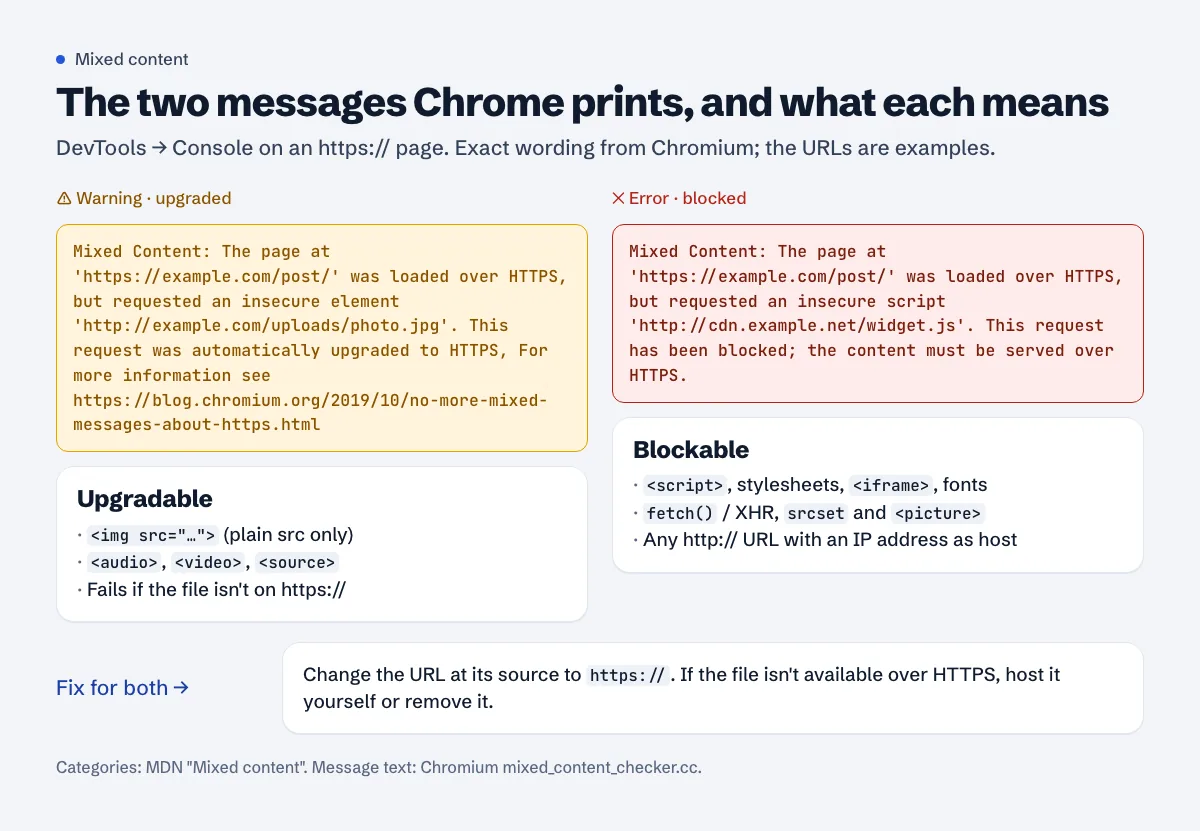
Open a page, then DevTools (F12) and the Console tab. Chrome prints one of two messages per insecure request. The wording comes straight from Chromium's source code:
- Upgraded:
Mixed Content: The page at '…' was loaded over HTTPS, but requested an insecure element '…'. This request was automatically upgraded to HTTPS, For more information see https://blog.chromium.org/2019/10/no-more-mixed-messages-about-https.html - Blocked:
Mixed Content: The page at '…' was loaded over HTTPS, but requested an insecure script '…'. This request has been blocked; the content must be served over HTTPS.(The word "script" changes to "stylesheet", "frame", "font", "image" and so on, depending on what was requested.)
web.dev's fixing mixed content guide has a caveat worth knowing before you start: "Mixed content errors and warnings are only shown for the page you are currently viewing", and the console is cleared each time you open another page. Check one page of each type: home, a post with images, a page with an embed, the contact page, a category page.
Find it: the page source
View the source (Ctrl+U, or Cmd+Option+U on a Mac) and search for http://. Or do it from a terminal across a few URLs:
curl -s https://example.com/some-post/ \
  | grep -oE '(src|srcset|href|data-src)="http://[^"]+"' | sort -u
Not every hit is a problem. web.dev: "having http:// in the href attribute of anchor tags () is often not a mixed content issue", because clicking a link opens a new page. Two exceptions: lightbox scripts that load the linked image into the current page (that is mixed content), and links to your own site over http://, which aren't mixed content but send every click through a redirect. Change those too; the redirect chains guide explains why the extra hop matters.
Don't forget CSS files. A background: url(http://…) in a theme stylesheet won't show in the HTML at all.
Fix it in WordPress
1. Check the two address settings
In Settings > General, both "WordPress Address (URL)" and "Site Address (URL)" must start with https://. WordPress's migration docs say: "Both settings should include the https:// part and should not have a slash / at the end." If they're greyed out, they're hard-coded as WP_HOME and WP_SITEURL in wp-config.php; change them there.
2. Replace old URLs in the database
Posts, image URLs, widget settings, page builder data and theme options all store full URLs. The safe tool is WP-CLI's `wp search-replace`, because it "intelligently handles PHP serialized data". A plain SQL REPLACE() on serialized options changes string lengths and corrupts them.
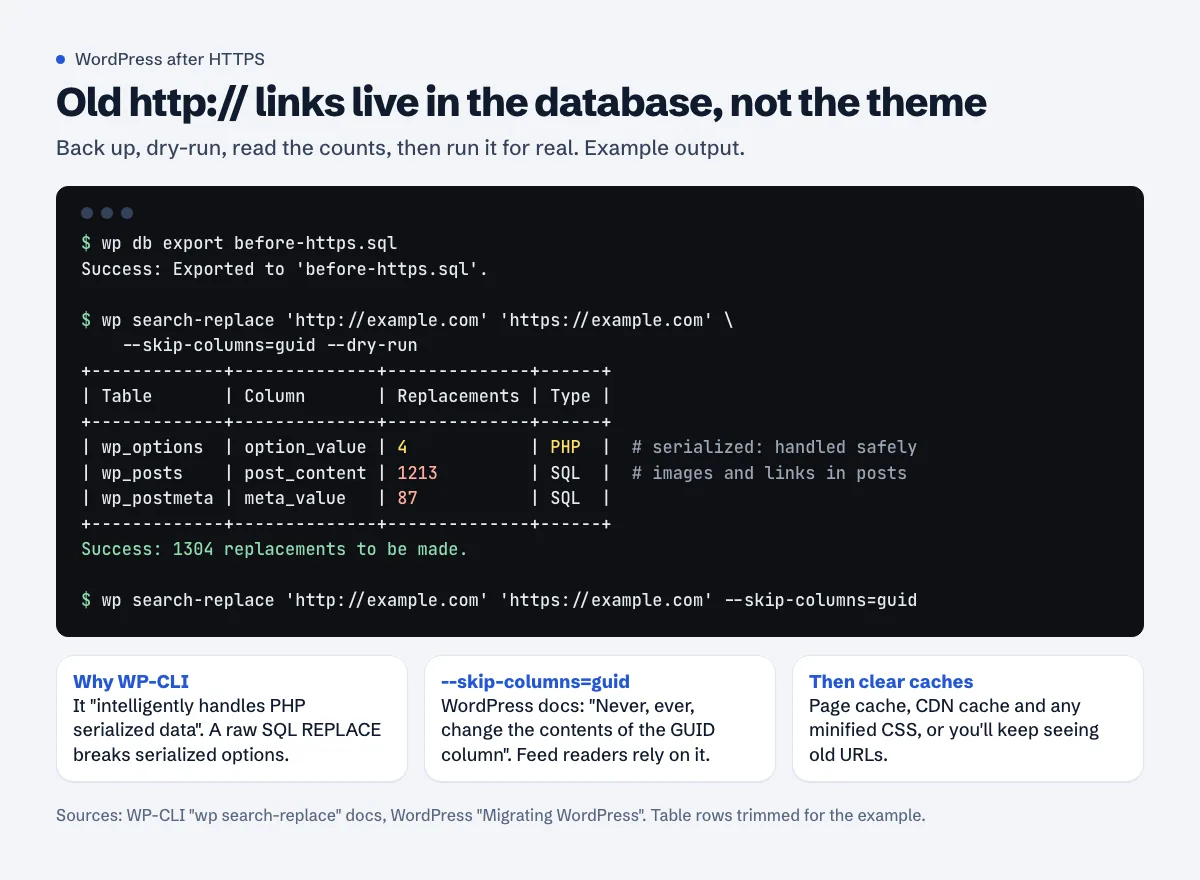
wp db export before-https.sql
wp search-replace 'http://example.com' 'https://example.com' --skip-columns=guid --dry-run
wp search-replace 'http://example.com' 'https://example.com' --skip-columns=guid
Why skip guid: WordPress's docs are unusually firm about it: "Never, ever, change the contents of the GUID column, under any circumstances." Feed readers use it to tell old posts from new ones.
Run it again for http://www.example.com if your site ever lived on www. Some page builders and plugins create tables WordPress doesn't register; --all-tables-with-prefix includes them. And note from the docs: "Tables without a primary key are skipped."
No SSH? Some hosts offer WP-CLI in a panel terminal, or you can use a search-and-replace plugin that says it handles serialized data. Back up the database first either way.
3. Fix what isn't in the database
- Theme files with hard-coded
http://(header, footer, functions file, CSS). - Third-party embeds pasted as old code: an
http://iframe from a map or video service. - Plugins that build URLs from their own settings page.
Then clear every cache: the page cache plugin, server cache, CDN cache and any combined or minified CSS. Otherwise you'll keep seeing the old URLs and assume the fix didn't work.
If a file isn't available over HTTPS
web.dev lists the options: "Include the resource from a different host, if one is available", "Download and host the content on your site directly, if you are legally allowed to do so", or "Exclude the resource from your site altogether." Test by changing http:// to https:// in the address bar and opening the file.
The safety nets: CSP and Cloudflare
These help, but they don't replace fixing the URLs.
Content-Security-Policy: upgrade-insecure-requests
This header tells the browser to treat every http:// resource URL on the page as https:// before requesting it. MDN's page on the directive says it is "intended for websites with large numbers of insecure legacy URLs that need to be rewritten."
Content-Security-Policy: upgrade-insecure-requests
Or in the page's <head>:
<meta http-equiv="Content-Security-Policy" content="upgrade-insecure-requests">
Three limits from MDN. If a resource isn't on HTTPS, "the request will fail without any fallback to HTTP." Links to other sites aren't upgraded, because "Navigational upgrades to third-party resources brings a significantly higher potential for breakage". And it "does not replace the Strict-Transport-Security (HSTS) header". Check which security headers you send now with the free security headers checker; the security headers guide covers a setup that doesn't break AdSense.
If you want to see what would be affected before enforcing anything, web.dev describes a report-only policy that sends you a report for every insecure request real visitors trigger:
Content-Security-Policy-Report-Only: default-src https: 'unsafe-inline' 'unsafe-eval'; report-uri https://example.com/reportingEndpoint
Cloudflare Automatic HTTPS Rewrites
On Cloudflare, SSL/TLS > Edge Certificates has a toggle called Automatic HTTPS Rewrites, available on every plan. It rewrites "URLs from http to https for resources or links on your web site that can be served with HTTPS."
Read its limitations before relying on it. Cloudflare can only rewrite URLs it knows work over HTTPS, using "data from EFF's HTTPS Everywhere and Chrome's HSTS preload list". If your domain is on neither list, "only active content will be rewritten. Passive content (such as images) will not be rewritten and will still cause mixed content errors." And URLs built by JavaScript at runtime aren't rewritten at all.
One related trap: Cloudflare's SSL mode. With Flexible, Cloudflare talks to your server over plain HTTP. Cloudflare's Flexible mode page warns that you "may have to adjust settings to avoid Mixed Content errors or redirect loops", and that if your origin redirects HTTP to HTTPS, Flexible "creates a redirect loop that makes your site inaccessible." Install a certificate on the server and use Full (strict).
After the fix
- Re-check the same set of pages in the console. No yellow, no red.
- Check the certificate covers both
example.comandwww.example.comwith the free SSL checker. - Make sure every
http://URL 301-redirects to itshttps://version in one hop. - Update the sitemap and canonical tags if they were generated with
http://.
Scan every page at once
A free Approvalens scan crawls up to 50 pages and lists the ones that load files over http:// and the ones that still link to http:// addresses: scan your site.
FAQ
Why are images missing only on some screen sizes?
WordPress serves responsive images through srcset, and MDN lists srcset among the blockable cases. The plain src gets upgraded, the srcset candidates get blocked, so what you see depends on which size the browser picks.
Is a "Really Simple SSL"-style plugin enough?
Plugins that rewrite URLs on output hide the problem rather than fix it, and the rewrite runs on every page view. They're a reasonable stopgap. Run the database replace and remove the dependency when you can.
Should I use protocol-relative URLs like //example.com/image.jpg?
There's no reason to now. Your site is HTTPS-only, so write https:// explicitly, or use root-relative paths (/wp-content/uploads/…) for your own files.
The console is clean but the padlock still shows a warning. What else?
Check the certificate itself (expiry, host names, intermediate chain), forms that post to http:// URLs, and pages cached from before the move. The SSL certificate guide covers certificate problems.
Spotted something out of date or wrong? Tell us and we'll correct it.
Read this guide in Turkish →Check it on your own site. Free, no sign-up.
Free tools for this
Free scan
Check your own site
The free scan reads the first 50 pages and shows your score and every problem it finds.