On this page (10)
- §1What structured data does, and what it doesn't
- §2Broken JSON-LD: find the exact character
- §3Article markup that matches Google's documentation
- §4When two sources describe the same page
- §5Organization, Person and breadcrumbs
- §6Blogger and Next.js
- §7Test before and after
- §8What the Approvalens scan checks
- §9Check your markup across the site
- §10FAQ
Structured data won't get a site approved for AdSense, and missing it won't get one rejected. AdSense's eligibility page doesn't mention it. It's worth fixing because broken markup is dead weight. A JSON-LD block with one stray comma is ignored completely, and an Article item with no date or image can't describe the page properly. Most of the errors come from two places: hand-edited JSON and two plugins describing the same page. Both have quick fixes.
What structured data does, and what it doesn't
Google describes structured data as "a standardized format for providing information about a page and classifying the page content" (intro to structured data). It recommends JSON-LD in most cases. Three rules from the general guidelines shape everything below:
- "Google does not guarantee that your structured data will show up in search results, even if your page is marked up correctly"
- "Don't mark up content that is not visible to readers of the page." If the JSON-LD names an author, the page must show that author.
- "Items that are missing required properties are not eligible for rich results." For recommended properties, "The more recommended properties that you provide, the higher quality the result is to users."
Google also says "It is more important to supply fewer but complete and accurate recommended properties" than many badly formed ones. That's the brief for this guide: less markup, done properly.
Broken JSON-LD: find the exact character
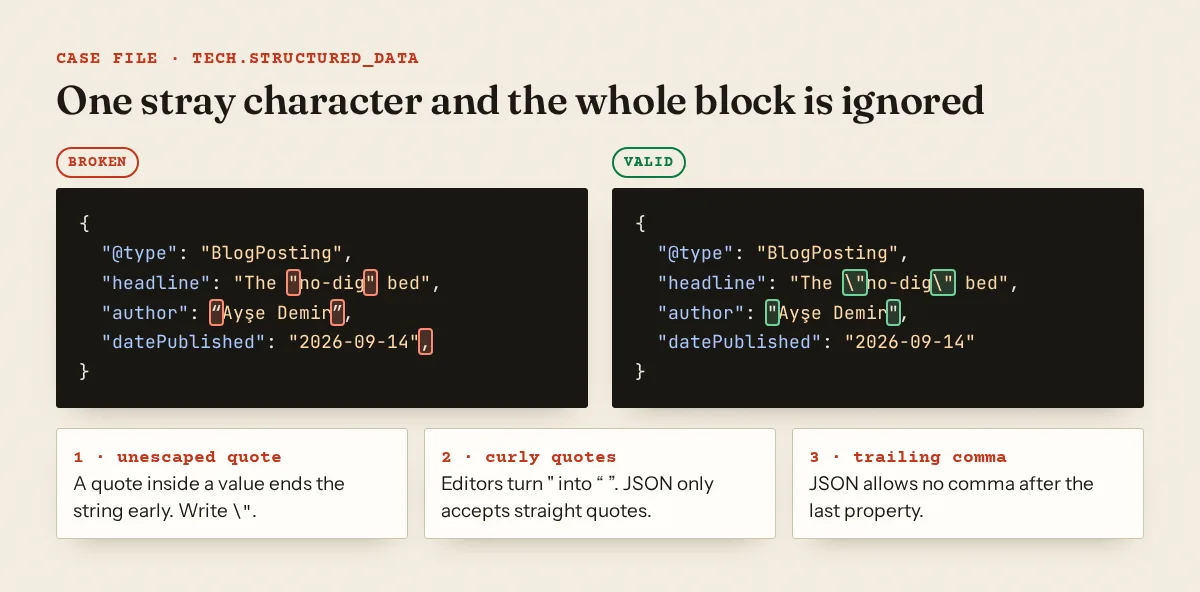
JSON is strict, and a single error makes the whole block unreadable to every parser. The usual causes:
- A quote inside a value. A title like
The "no-dig" beddropped into a template without escaping ends the string early. - Curly quotes. Copying JSON through a word processor, or a "smart quotes" filter, turns
"into“ ”. - A trailing comma after the last property, usually left by a hand edit.
- Comments.
// main articleis valid JavaScript but not valid JSON. - Two objects in one block without square brackets around them, often from two template parts writing into the same
<script>.
To find the block and the position, run this from a terminal. It pulls every JSON-LD block from the page and parses it:
$ curl -s https://example.com/raised-beds/ | python3 -c '
import sys, re, json
html = sys.stdin.read()
for i, raw in enumerate(re.findall(r"<script[^>]*application/ld\+json[^>]*>(.*?)</script>", html, re.S), 1):
    try:
        json.loads(raw); print(i, "ok")
    except ValueError as e:
        print(i, "BROKEN:", e)'
1 ok
2 BROKEN: Expecting property name enclosed in double quotes: line 7 column 1 (char 143)
"Expecting property name" at the start of a line almost always means a trailing comma on the line above. If you have Search Console, the Unparsable structured data report lists pages Google couldn't parse "because of a serious syntax error", with error types such as "Parsing error: Missing ',' or '}'" and "Bad escape sequence in string" (Search Console Help).
The lasting fix is to stop writing JSON by hand. Generate it from data with a serializer (json_encode in PHP, JSON.stringify in JavaScript), or let one plugin own it.
Article markup that matches Google's documentation
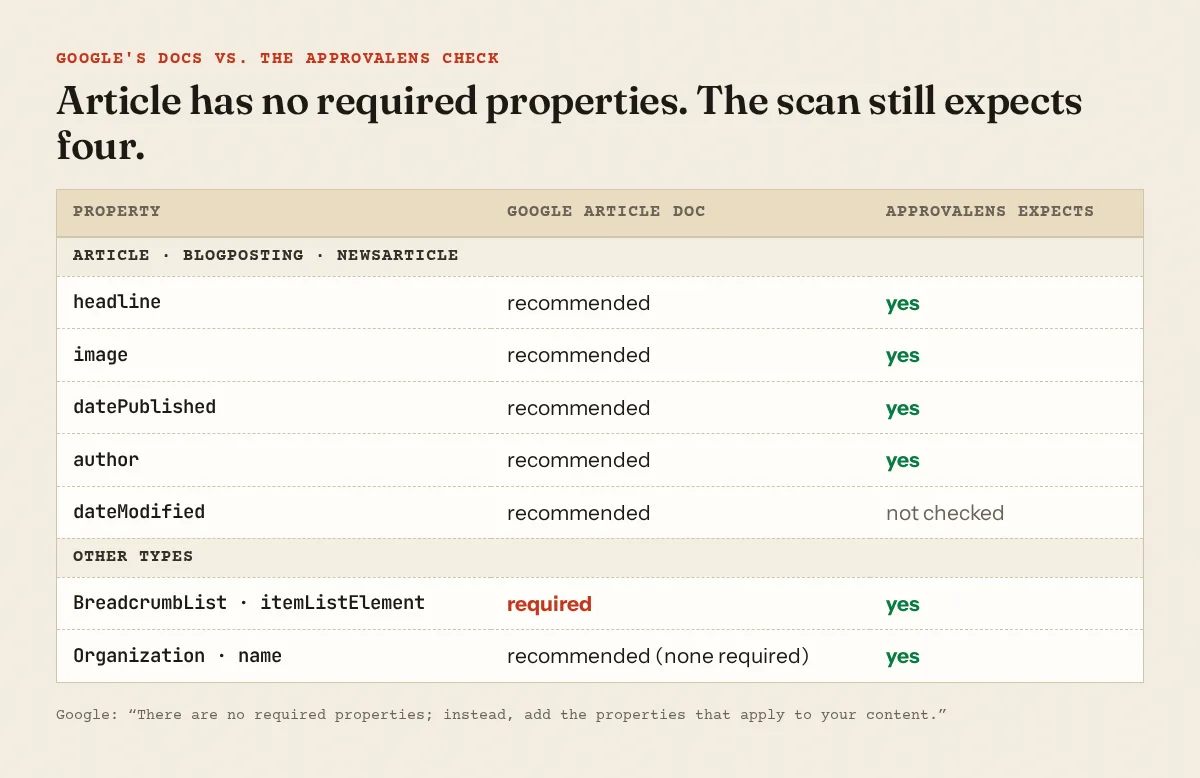
Google's Article documentation covers Article, NewsArticle and BlogPosting. It says plainly: "There are no required properties; instead, add the properties that apply to your content." The recommended ones are author (with name and url), dateModified, datePublished, headline and image. A complete block for a blog post:
<script type="application/ld+json">
{
  "@context": "https://schema.org",
  "@type": "BlogPosting",
  "headline": "Raised beds without digging: a two-season test",
  "image": ["https://example.com/img/raised-bed-16x9.jpg"],
  "datePublished": "2026-09-14T08:00:00+03:00",
  "dateModified": "2026-09-20T10:30:00+03:00",
  "author": [{
    "@type": "Person",
    "name": "Ayşe Demir",
    "url": "https://example.com/authors/ayse-demir/"
  }]
}
</script>
For images, Google recommends several high-resolution versions in 16x9, 4x3 and 1x1 ratios, with at least 50,000 pixels (width × height). author.url should point to a page that identifies the author. Author pages and E-E-A-T covers what that page needs.
Here Approvalens is stricter than Google, and you should know why. The scan expects headline, image, datePublished and author on every Article, BlogPosting and NewsArticle item. Google calls these recommended, not required. We flag them because an article item without a date or author is a weak description of an article. Treat seo.schema_incomplete on Article types as "fill these in if the page shows them", not as a Google error. If a post has no featured image, don't invent one. Leave image out and accept the notice.
On one site we scanned, the report listed 986 incomplete items, with details such as "Article: missing image, datePublished". Some of them sat on the home page and on interactive tool pages, which aren't articles at all. There the better fix is a more fitting type, or no Article item, rather than filling in fields.
When two sources describe the same page
WordPress sites often end up with two schema generators: the theme's built-in markup and an SEO plugin's graph. Sometimes it's two SEO plugins. The result is two Article items for one post, often with different authors ("admin" from the theme, the real name from the plugin) and one of them half empty.
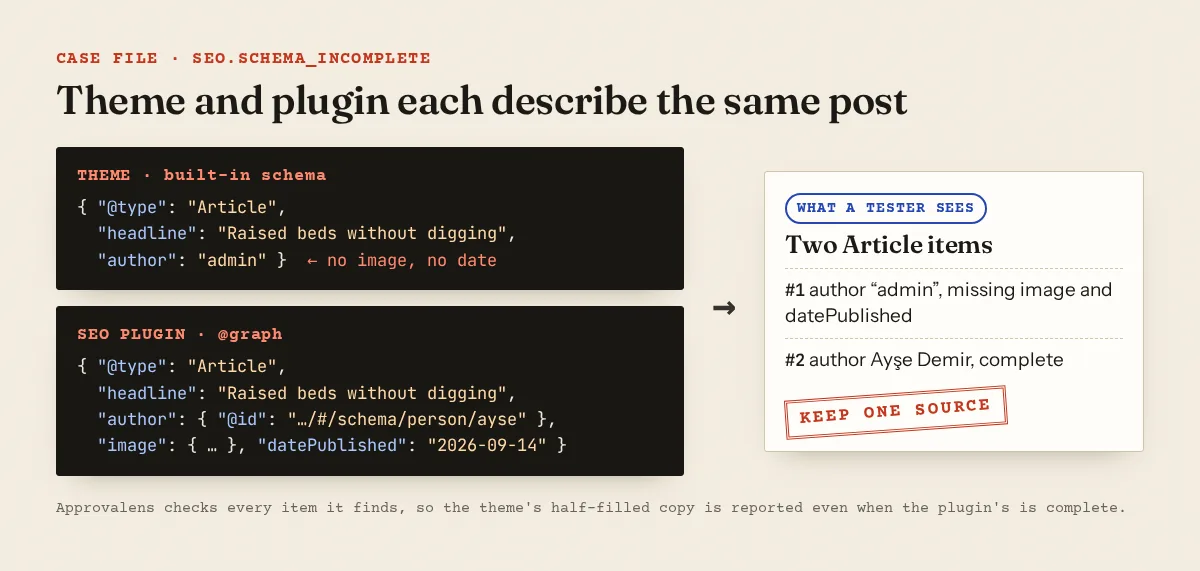
To confirm it, view the source and count application/ld+json. Yoast's output sits between <!-- This site is optimized with the Yoast SEO plugin … --> and <!-- / Yoast SEO … -->. Rank Math's sits between <!-- Search Engine Optimization by Rank Math … --> and <!-- /Rank Math WordPress SEO plugin -->. Anything outside came from the theme or another plugin. Turn that one off in its own settings, or deactivate the second SEO plugin.
Then set the defaults in the plugin you keep:
- Yoast SEO: "By default, Yoast SEO uses WebPage Schema for Pages and Article Schema for Posts". You can change the article type per content type under Yoast SEO → Settings → Content types (Yoast help).
- Rank Math: Rank Math SEO → Titles & Meta → Posts has a "Schema Type" setting. With Article selected, an "Article Type" choice appears (Article, Blog Post or News Article) (Rank Math KB).
Both plugins fill image from the featured image and author from the WordPress user. Set a featured image and a real display name, and most incomplete-item notices disappear.
Organization, Person and breadcrumbs
trust.org_schema asks whether any page says who runs the site. Google's Organization documentation says "There are no required properties" and suggests placing the markup "on your home page, or a single page that describes your organization, for example the about us page". Its logo should be at least 112×112 pixels. A minimal home page block:
{
  "@context": "https://schema.org",
  "@type": "Organization",
  "name": "Example Garden",
  "url": "https://example.com/",
  "logo": "https://example.com/img/logo-512.png",
  "email": "hello@example.com"
}
A one-person blog should use Person instead. In Yoast this is Yoast SEO → Settings → Site representation, where you choose Organization or Person (Yoast help). Rank Math keeps it under Titles & Meta → Local SEO. The markup only repeats what your About and Contact pages should already say. About and contact pages covers those.
Breadcrumbs are a navigation feature first. Google's breadcrumb documentation requires itemListElement, and each ListItem needs position, name and item, except that the last item doesn't need item. Google recommends breadcrumbs "that represent a typical user path to a page, instead of mirroring the URL structure". To turn them on in Yoast, go to Settings → Advanced → Breadcrumbs, then add the breadcrumb block, the [wpseo_breadcrumb] shortcode or a theme call (Yoast help). In Rank Math it's Rank Math SEO → General Settings → Breadcrumbs, with the Schema module on (Rank Math KB). How breadcrumbs fit a menu is in site navigation.
Blogger and Next.js
Blogger. Blogger's documented blog settings include no structured-data option, so what you get depends on your theme. Go to Theme, choose Edit HTML from the menu under "My theme", and search for application/ld+json to see what's there. If you add a block yourself, keep it static (organization or person name, URL, logo) and add it to the home page only. The theme file is XML, so a bare & in a value can stop it saving. Write "and" instead. Test the live page after every change.
Next.js. The Next.js 16 docs recommend rendering JSON-LD "as a <script> tag in your layout.js or page.js components" and escaping < (from json-ld.md in the docs):
// app/blog/[slug]/page.tsx
export default async function Page({ params }: { params: Promise<{ slug: string }> }) {
  const { slug } = await params
  const post = await getPost(slug)
  const jsonLd = {
    '@context': 'https://schema.org',
    '@type': 'BlogPosting',
    headline: post.title,
    image: post.coverUrl ? [post.coverUrl] : undefined,
    datePublished: post.publishedAt,
    dateModified: post.updatedAt,
    author: [{ '@type': 'Person', name: post.author.name, url: post.author.url }],
  }
  return (
    <article>
      <script
        type="application/ld+json"
        dangerouslySetInnerHTML={{ __html: JSON.stringify(jsonLd).replace(/</g, '\\u003c') }}
      />
      <h1>{post.title}</h1>
    </article>
  )
}
JSON.stringify can't produce a trailing comma or an unescaped quote, so this route doesn't trigger tech.structured_data. It does drop undefined values without warning. A post with no cover image simply has no image, which is honest but will show up as incomplete. Use a plain <script>, not next/script. The docs explain that JSON-LD "is structured data, not executable code". Put site-wide Organization markup in the root layout and Article markup in the post page, so the two don't overlap.
Test before and after
- Rich Results Test: test a live URL or paste code, and choose a smartphone or desktop crawler (Search Console Help). It only reports types that Google uses for rich results.
- Schema Markup Validator: checks any schema.org markup, including types Google doesn't use. The Next.js docs point to both tools.
- Search Console: the Unparsable structured data report and the URL Inspection tool show what Google read from the live page. After fixing, use "Validate Fix" in the report.
What the Approvalens scan checks
The scan reads <script type="application/ld+json"> blocks in the HTML the server sends. It doesn't read Microdata or RDFa. It also looks inside @graph. The methodology page explains crawling and page types.
| Finding | What triggers it | Level |
|---|---|---|
tech.structured_data |
A JSON-LD block on any crawled page fails to parse as JSON. Empty blocks are skipped. | notice |
seo.schema_incomplete |
An item on the home page or an article lacks a property on our list: headline, image, datePublished, author for Article/BlogPosting/NewsArticle, name for Organization, itemListElement for BreadcrumbList, plus lists for Recipe, Product, FAQPage, HowTo, VideoObject, Event, LocalBusiness and Review |
notice, warning at 5+ items |
trust.org_schema |
No crawled page has an Organization, Person, WebSite, NewsMediaOrganization, LocalBusiness or Corporation item | notice |
structure.breadcrumbs |
With 5+ articles, fewer than 30% have BreadcrumbList markup or a visible breadcrumb element (a class containing "breadcrumb", or a nav labelled as one) | notice |
Visible breadcrumbs without markup pass the breadcrumb check. Markup without visible breadcrumbs also passes, but Google's guidelines expect what you mark up to be on the page.
Check your markup across the site
A free Approvalens scan lists pages with broken JSON-LD and incomplete items, with the missing properties for each, so you can tell a plugin setting from a one-off template bug.
FAQ
Do I need structured data for AdSense approval?
No. AdSense's eligibility requirements don't mention it. It can help Google understand pages and qualify them for rich results, but approval depends on content and policy compliance.
Is the Rich Results Test enough?
For Google's rich result types, yes. For other schema.org types, or to see everything on the page, add the Schema Markup Validator.
Should I remove markup I can't complete?
If a type doesn't fit the page, yes. A home page or a tool page marked up as an Article helps no one. If it fits but a value is missing, such as an image, leaving that property out is better than inventing one.
Two plugins output schema. Which should I keep?
Keep the one that also manages your titles and descriptions, so a single plugin owns the <head>. Switch off schema output in the theme and in any other plugin. The same clash often causes double title tags, covered in duplicate titles and meta descriptions.
Does fixing structured data change rankings?
Google's structured data docs make no ranking claim. They describe eligibility for rich results, which Google doesn't guarantee.
Spotted something out of date or wrong? Tell us and we'll correct it.
Read this guide in Turkish →Free scan
Check your own site
Free scan: readiness score and every issue, usually in a few minutes.