When AdSense can't verify your site, its crawler looked for your publisher ID in the place you chose (the AdSense code in your HTML, the google-adsense-account meta tag, or your ads.txt file) and didn't find it. Usually the ID is there in your editor but not in what the crawler receives: it's in the wrong part of the page, on a different version of the domain, behind a cache, or blocked by a firewall or robots.txt. Check the live page the way the crawler sees it, fix the one thing that's off, and click Verify again. If one method keeps failing, Google itself suggests trying another.
How verification works now
When you add a site, Google says "we verify that you're the owner of the site either via your ad code, your ads.txt file, or a meta tag on your site" (AdSense site management). The check runs immediately: "When you add a new site in AdSense, we'll now verify your site ownership in real time" (Improvements to site management).
If it fails, Google's instruction is short: "make sure the changes you made to your site are published and accessible by the AdSense ads crawler (Mediapartners-Google and Google-Display-Ads-Bot). If you're still having issues, you can try a different verification method" (Add a new site).
There's also a fourth route people miss. Google: "If you'd prefer not to paste the code between the <head> and </head> tags of your site or create an ads.txt file, you can verify your site ownership in Search Console. If we detect that you've verified your site in Search Console, we'll continue checking your site is ready to show ads" (Site not ready to show ads).
The three methods and how each one fails
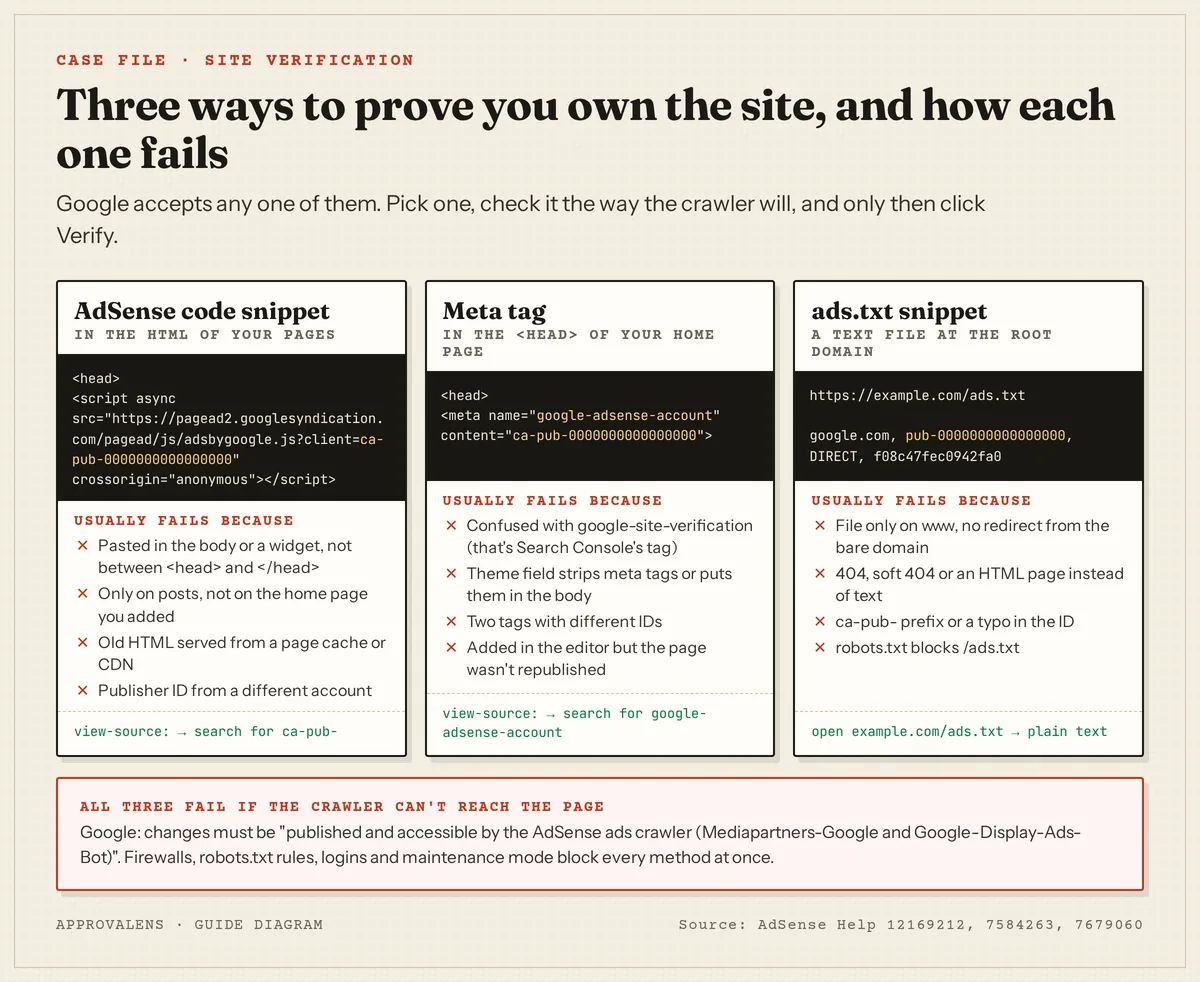
AdSense code snippet
Google's instruction: "Copy and paste the code into the HTML of your page, between the <head> and </head> tags" (Connect your site). The snippet looks like this, with your own ID:
<script async src="https://pagead2.googlesyndication.com/pagead/js/adsbygoogle.js?client=ca-pub-0000000000000000"
     crossorigin="anonymous"></script>
Why it fails:
- It's not in the head. Pasted into a text widget, a footer field or a post body. Many themes have a dedicated "header scripts" field; use that, or a plugin that writes into
<head>. - It's not on the page you added. If you added
example.com, the home page itself must carry it, not only your articles. - The live page is old. A page cache, a CDN or a static build serves HTML from before you added the code. Clear the cache or rebuild and redeploy.
- The ID belongs to another account. An old account, a client's account, or a typo. It must match the
pub-ID shown in the account where you added the site. - It's added only by JavaScript after the page loads, for example by a tag manager. Google's instruction is to paste it into the HTML; a crawler reading the page source may never see a script inserted later. If you use a tag manager for ads, verify with the meta tag or ads.txt instead.
- The code was edited. Google's common issues article lists code that doesn't appear "in its entirety", code that "displays all on one line" and code with "extra HTML tags within it". Copy it fresh from AdSense.
Meta tag
Google: "You might want to use this method if you don't want to place the AdSense code snippet on your homepage. Copy and paste the code into the HTML of your page, between the <head> and </head> tags." The tag:
<meta name="google-adsense-account" content="ca-pub-0000000000000000">
Why it fails:
- It's the wrong tag.
google-site-verificationis Search Console's verification tag, not AdSense's. AdSense looks forgoogle-adsense-account. - The theme or builder strips it or moves it into the body. Check the live source, not the settings field.
- There are two tags with different IDs, often from an old plugin plus a new manual paste.
- The change wasn't published. Site builders often keep edits in a draft until you publish the whole site.
ads.txt snippet
Google: "Copy and paste the code into your ads.txt file, and upload the ads.txt file to your site's root directory." The line is google.com, pub-0000000000000000, DIRECT, f08c47fec0942fa0 with your own ID.
Why it fails:
- The file is only on www. "Ads.txt crawling will start at the root domain", so
example.com/ads.txtmust return the file or redirect to it (Ensure your ads.txt files can be crawled). - It returns 404, a soft 404 or an HTML page. A 404 response "will be ignored" even if a body comes back.
- The ID is wrong:
ca-pub-instead ofpub-, a missing digit, an extra comma. - robots.txt blocks it, for example with
Disallow: /ads.
The ads.txt warning guide goes through every ads.txt failure and its fix.
Problems that break every method
- The crawler is blocked. A firewall, CDN bot protection, a security plugin or a country block can stop Mediapartners-Google before it sees anything. Robots.txt rules aimed at
Mediapartners-Googledo the same. See site down or unavailable. - The URL doesn't match. You added
example.combut the code is only served onwww.example.com, or the other way round, and one version doesn't redirect to the other. Pick one main version and 301-redirect the rest. - Login or maintenance mode. A "coming soon" page shown to logged-out visitors hides the code from the crawler.
- The site is on a host partner. Google: "If your site is on one of our host partner sites (like Blogger), you'll need to go to your host partner to add your site to AdSense." Blogger sites follow their own flow.
Check it before you click Verify
- Open your home page in a private window and view the source (
Ctrl+U). Search forca-pub-(code snippet) orgoogle-adsense-account(meta tag). It must be inside<head>and show the ID of the account you're using. - Request it as the crawler would. From a terminal:
curl -s -A "Mediapartners-Google" https://example.com/ | grep -o "ca-pub-[0-9]*" | sort -u
No output means the crawler's user agent doesn't get the code. Compare with the same command without -A.
- Check the crawler can open the page at all with the free Googlebot access checker, and test
/and/ads.txtin the robots.txt tester. - For ads.txt, run the free ads.txt checker; it also compares the file with the publisher ID in your page's ad code.
- Check both versions of the domain:
https://example.com/andhttps://www.example.com/should end on the same page.
When all of that passes, go back to AdSense and click Verify. If the same method still fails, switch to another one: the meta tag is often the easiest when a theme or plugin fights with scripts.
After verification
Verification proves ownership; it isn't approval. Next comes the review, shown on the Sites page as "Getting ready" (what that status means). Keep the code, tag or file in place during the review and afterwards.
Let a scan confirm what the crawler sees
A free Approvalens scan fetches your pages as Google's crawlers, finds the AdSense code and meta tag, checks the publisher ID against ads.txt and flags broken or duplicated snippets, blocked crawlers and www mismatches. Check your verification setup.
FAQ
Which verification method is best?
Any of the three works. The code snippet is the natural choice if you'll use Auto ads anyway. The meta tag is simplest if you don't want ads on your home page. ads.txt is a good fit if you already maintain one. Google also accepts a site already verified in Search Console.
Can I remove the code after the site is verified?
Keep it. The review that follows still needs to find your site connected, and if you used the code snippet, it's also what shows your ads.
I use a site builder that doesn't allow code in the head. What now?
Try the meta tag if the builder has a field for it, or ads.txt if it lets you publish a root file. If it allows neither, verify the domain in Search Console with a method the builder supports, which Google accepts as an alternative.
Verification works for www but I added the site without www. Is that a problem?
It can be. Redirect one version to the other with a 301 so both addresses end on the same page with the same code, then verify again.
Spotted something out of date or wrong? Tell us and we'll correct it.
Read this guide in Turkish →Check it on your own site. Free, no sign-up.
Free tools for this
- /tools/ads-txt-checkerads.txt CheckerValidates every line of /ads.txt and confirms Google is listed with your publisher ID.Open the tool
- /tools/googlebot-access-checkerGooglebot Access CheckerLoads your home page as Googlebot and the AdSense crawler and compares what each one gets.Open the tool
- /tools/robots-txt-testerrobots.txt TesterTests a path against robots.txt for the AdSense crawler, Googlebot and AdsBot.Open the tool
Free scan
Check your own site
Free scan: readiness score and every issue, usually in a few minutes.