Shopify is built to sell, and AdSense is built to pay for content. They can work together, but a store has to clear two hurdles a blog doesn't. Technically, Shopify doesn't let you upload files to the root of your domain, so ads.txt needs a workaround. Editorially, a reviewer needs to find content worth reading, and product grids rarely are. This guide covers both, with the menu names Shopify uses today.
Step 1: Make the store public
New stores start in private mode, where "all of your online store's pages are hidden from visitors and search engines" (Shopify: private mode). AdSense can't review what it can't open. Its checklist asks: "Can AdSense access your site without a password?" (site not ready).
To go public: Online Store → Private → Public → Update. Shopify notes that a store on a trial plan, or without a business address, is prompted to complete that step first. The password itself lives under Online Store → Preferences.
Step 2: Add the AdSense code to theme.liquid
AdSense wants its code "between the
and tags of your site" and on every page (code placement). In Shopify, every storefront page is wrapped by the layout filetheme.liquid, which "must be included in all themes" and holds the <head> (Shopify layouts).
- From your Shopify admin, go to Online Store. Next to your live theme, click ⋯ → Edit code (edit theme code). Shopify recommends you "duplicate your theme to create a backup copy" first.
- In the Layout folder, open
theme.liquid. - Find
{{ content_for_header }}(it sits inside<head>) and paste the snippet just below it:
{{ content_for_header }}
<script async src="https://pagead2.googlesyndication.com/pagead/js/adsbygoogle.js?client=ca-pub-1234567890123456" crossorigin="anonymous"></script>
- Save, then open your store's home page with view-source: and search for
adsbygoogle.
The code lives in the theme. If you switch or update to a fresh copy of a theme, paste it again.
Step 3: ads.txt, the Shopify way
ads.txt is optional for approval: the code snippet or the meta tag verifies the site too (connect your site). But if you want the file, Shopify won't let you place it at /ads.txt directly. AdSense's FAQ covers this case: "My CMS doesn't let me place a file on my root domain. What should I do?", and also says "Google supports a single HTTP redirect to a destination outside the original root domain" (ads.txt FAQ). Shopify offers both pieces you need:
- Upload the file. Create
ads.txtin a plain text editor with your line (google.com, pub-…, DIRECT, f08c47fec0942fa0). Go to Content → Files and upload it. On paid plans "you can upload any file format other than HTML". Trial plans only accept a short list of types that doesn't include TXT (file uploads). Click Link next to the file to copy its URL. - Redirect
/ads.txtto it. Go to Content → Menus → View URL Redirects and create a redirect: Redirect from/ads.txt, Redirect to the file URL you copied (URL redirects).
Why this works: Shopify allows redirects only "from broken URLs", and a stock store returns 404 at /ads.txt (we checked several live stores). /ads.txt isn't on Shopify's list of blocked paths, and the target "can be … a full URL".
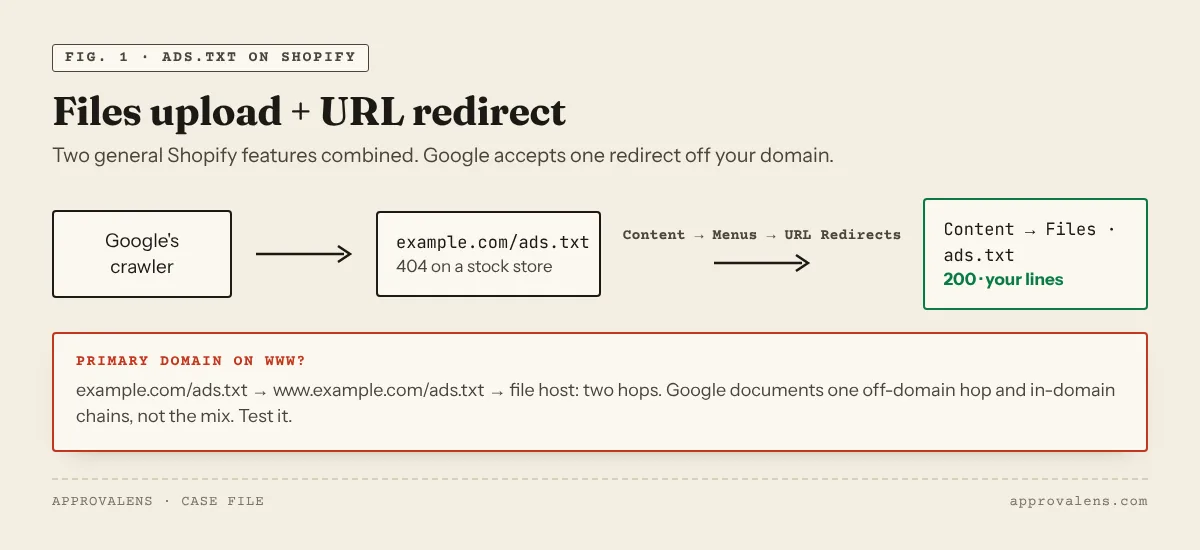
Be honest about the limits. Shopify doesn't document this as an ads.txt feature. It combines two general features, and we haven't been able to test it end to end on a store of our own. One case needs extra care. If your primary domain is www.example.com, Google's crawler starts at example.com/ads.txt, gets redirected to www by Shopify, then to the file host. Google documents "a single HTTP redirect" off your domain and "multiple redirects … as long as each redirect location remains within the original root domain", but it doesn't say whether the two can be combined. Run the result through the ads.txt checker, watch the ads.txt status on your AdSense Sites page, and if it stays unclear, verify with the code snippet and skip ads.txt.
robots.txt
Shopify generates a default robots.txt that it calls "optimal for Search Engine Optimization" (editing robots.txt). It blocks things like the admin, cart and checkout for all crawlers. That's fine for AdSense: Mediapartners-Google ignores the * group (Google's crawlers).
You can override it with a robots.txt.liquid template (Edit code → Add a new template → robots), but Shopify calls this "an unsupported customization" and warns that "incorrect use of the feature can result in loss of all traffic". If someone on your team created one, paste the live file into the robots.txt tester.
The content problem
This is where most store applications fail. AdSense wants a site that "provides enough valuable content to users" (site not ready) and doesn't allow ads on screens "without publisher-content or with low-value content" (publisher policy). A typical store looks like this to a reviewer:
| Store page | What the reviewer sees | What helps |
|---|---|---|
| Home and collections | Product grids, prices, banners | Short, specific intros that help people choose |
| Product pages with the supplier's description | Text that also appears on dozens of other stores | Your own descriptions, sizing notes, photos and real use |
| Cart, checkout, account, order status | Transactional screens | No ads here. Google bans ads on "dead end" screens like "Thank You, Exit, Error pages" |
| Blog | Usually empty or three posts from launch week | Real guides: how to choose, care, compare, fix |
Google's replicated-content policy covers content "copied from other websites … without adding any value" (replicated content). It doesn't mention product descriptions specifically, but a store built on the same supplier text as hundreds of others is easy to read that way. Google's search spam policies use exactly that example for affiliate sites: product descriptions "copied directly from the original merchant without any original content or added value" (spam policies).
The practical fix is Shopify's built-in blog. A store that sells coffee grinders and publishes honest grinder comparisons, grind-size guides and cleaning instructions gives a reviewer something to evaluate.
What you sell matters too
Some product categories get fewer ads, and some can't have Google ads at all.
- Restricted (ads may serve, but "this content will likely receive less advertising"): sexual merchandise, firearms and parts, airsoft and BB guns, pepper spray, tobacco and e-cigarettes, online alcohol sales, prescription drugs, unapproved supplements (Publisher Restrictions).
- Prohibited: anything that "sells or promotes the sale of counterfeit products", and products from endangered species (Publisher Policies).
Consent banner
Shopify's cookie banner lives in Settings → Customer privacy → Cookie banner. Shopify says it "governs Shopify-specific tools", and that third-party scripts may need "a third-party cookie banner or … custom logic" (privacy settings). For personalised ads to visitors in the EEA, UK and Switzerland, Google requires a Google-certified CMP that integrates with the IAB TCF (consent requirements). Shopify's banner isn't on Google's certified list, so use AdSense's Privacy & messaging or a certified CMP app. See the CMP guide.
Domains
Under Settings → Domains, one domain is the primary. Shopify automatically redirects your other domains, including the myshopify.com address, to it (change primary domain). Keep both example.com and www.example.com connected (domains), and submit your own domain to AdSense, not myshopify.com.
Shopify pre-application checklist
- Store is in public mode
- AdSense snippet in
theme.liquid, below{{ content_for_header }}, once - ads.txt via Files + URL redirect and checked, or skipped in favour of the snippet
- Both
example.comandwww.example.comconnected, primary domain set - Product descriptions written by you, not pasted from the supplier
- Several useful blog posts or guides that stand on their own
- Privacy policy mentions Google's ad cookies (test it)
- A Google-certified CMP if you have EEA, UK or Swiss visitors
- No ads planned on cart, checkout, account or thank-you pages
Scan your store
The free Approvalens scan crawls your public storefront, compares product text across pages to spot duplicated supplier copy, follows the ads.txt redirect the way Google does, and tells you whether there's enough content outside the product grid.
FAQ
Can a Shopify store get AdSense approval?
Yes, if it's public, has the code in theme.liquid and has content worth reading besides products. Stores with only product pages are the ones that struggle.
Is ads.txt required on Shopify?
No. It's one of three verification methods. If the redirect workaround doesn't work for your domain setup, verify with the code snippet.
Can I use a Shopify app instead of editing code?
Possibly, but check what the app does: one copy of the AdSense code in <head> is the goal. Two apps, or an app plus a manual snippet, means duplicate code.
Spotted something out of date or wrong? Tell us and we'll correct it.
Read this guide in Turkish →Check it on your own site. Free, no sign-up.
Free tools for this
- /tools/ads-txt-checkerads.txt CheckerValidates every line of /ads.txt and confirms Google is listed with your publisher ID.Open the tool
- /tools/robots-txt-testerrobots.txt TesterTests a path against robots.txt for the AdSense crawler, Googlebot and AdsBot.Open the tool
- /tools/privacy-policy-checkerPrivacy Policy CheckerChecks that your privacy policy covers what AdSense requires about Google's cookies.Open the tool
Free scan
Check your own site
Free scan: readiness score and every issue, usually in a few minutes.