On this page (11)
- §1Start with what the server sends
- §2Which setups are risky
- §3Soft 404s: a classic SPA problem
- §4Where the AdSense code goes in the App Router
- §5ads.txt lives in /public
- §6robots.ts and preview environments
- §7proxy.ts (formerly middleware) can hide your site
- §8Consent for EEA, UK and Swiss visitors
- §9Next.js pre-application checklist
- §10Scan the deployed site
- §11FAQ
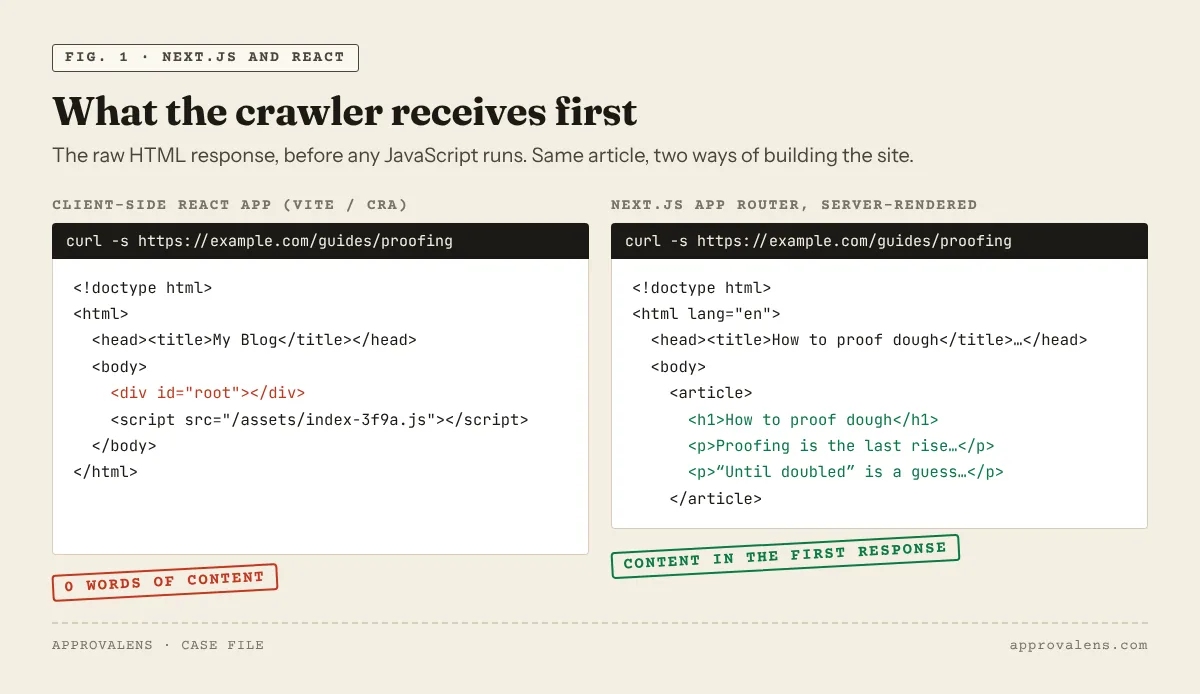
AdSense has no rule against React or Next.js. A reviewer looks at the same things on every site: real content, navigation, a privacy policy and pages that Google can open. What changes with a JavaScript framework is how easy it is to break those things without noticing. The page looks perfect in your browser, while the HTML the server actually sends is an empty <div id="root">, /ads.txt returns your app shell, or a proxy redirects Google's crawler to a login page.
This guide covers the parts that are specific to React and Next.js. It was checked against the Next.js 16 documentation (App Router) and Google's own pages.
Start with what the server sends
Google's JavaScript SEO guide says Googlebot queues pages for rendering, and that "the page may stay on this queue for a few seconds, but it can take longer than that". It still recommends server rendering: "server-side or pre-rendering is still a great idea because it makes your website faster for users and crawlers, and not all bots can run JavaScript" (JavaScript SEO basics).
The AdSense crawler has its own help page (About the AdSense crawler). It explains that Mediapartners-Google "visits your site to determine its content in order to provide relevant ads", but it says nothing about running JavaScript. Don't build your approval on the assumption that it does. Put the article text in the HTML.
Check it yourself
Pick a sentence from the middle of one of your articles and look for it in the raw HTML:
curl -s https://example.com/guides/my-article | grep -c "a sentence from the middle of the article"
A result of 0 means the text is only added by JavaScript. Repeat the test with Google's user agent, because firewalls and bot protection sometimes serve crawlers something else:
curl -s -A "Mozilla/5.0 (compatible; Googlebot/2.1; +http://www.google.com/bot.html)" https://example.com/guides/my-article | grep -c "a sentence from the middle of the article"
The free Googlebot access checker runs the same comparison for you and shows the status code each crawler gets.
Which setups are risky
| Setup | What the first HTML contains | Risk for AdSense review |
|---|---|---|
| Next.js App Router, Server Components (the default) | Full page content | Low |
Next.js with 'use client' components |
Content too, because Client Components are also prerendered on the server (Next.js docs) | Low, unless data is fetched only in useEffect |
Next.js static export (output: 'export') |
Full content per page, as .html files |
Low, if the host serves 404.html with a 404 status |
| Vite or Create React App single-page app | An empty root element and a script bundle | High: text only appears after JavaScript |
Any framework with content fetched in useEffect |
Headings and layout, but no article text | High on the pages that matter most |
If you run a plain React SPA, the fix is structural: move to a framework that renders on the server or at build time (Next.js, Remix/React Router framework mode, Astro), or pre-render your article pages. Adding more meta tags doesn't change what the crawler gets.
Soft 404s: a classic SPA problem
A single-page app usually answers every path with index.html and status 200, then shows "Not found" in JavaScript. Google calls this a soft 404 and suggests either redirecting to a URL that returns a real 404, or adding noindex to error views (JavaScript SEO basics).
Next.js does better by default, with one catch the docs spell out: for not-found pages "Next.js will return a 200 HTTP status code for streamed responses, and 404 for non-streamed responses" (not-found.js). If a route has a loading.tsx and calls notFound() after the stream has started, visitors get the not-found UI with status 200. Test a made-up URL under every route type:
curl -s -o /dev/null -w "%{http_code}\n" https://example.com/guides/this-does-not-exist
You want 404. A real 404 also tells AdSense that these are not pages to show ads on. Google doesn't allow ads on error pages.
Where the AdSense code goes in the App Router
AdSense asks you to "paste it between the
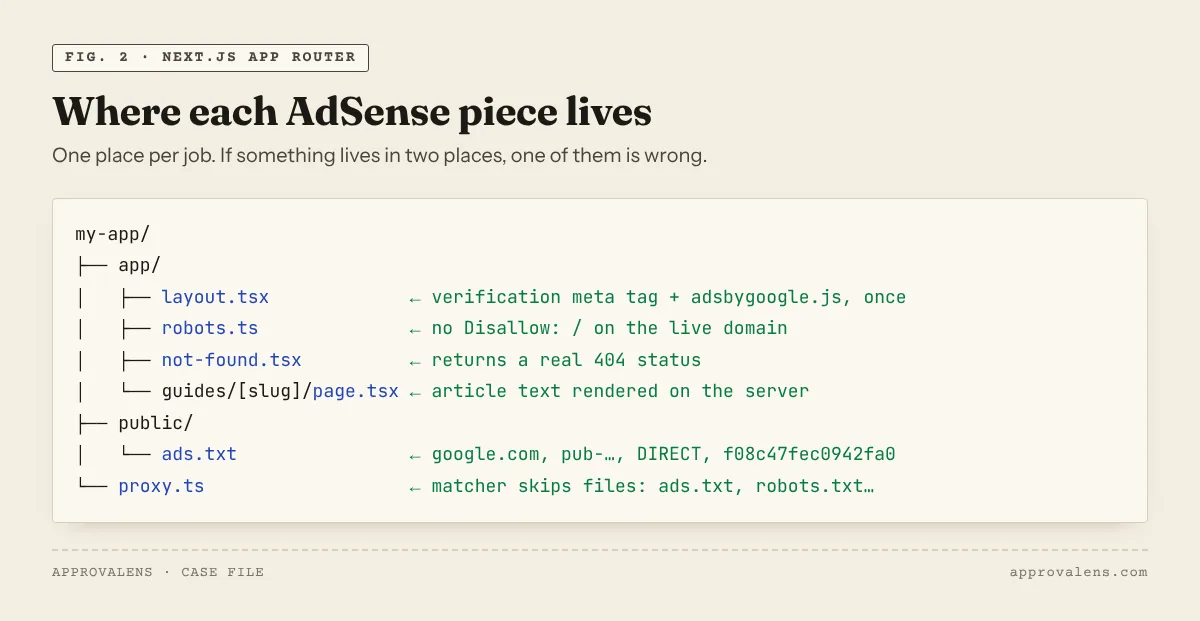
and tags of your site" and recommends placing it "on every page" (where to place the code). In the App Router, the root layout (app/layout.tsx, or app/[locale]/layout.tsx on multilingual sites) is the place that covers every page. You have three options. Pick one for verification and don't stack them.
1. The verification meta tag through the Metadata API. This is the cleanest way to prove ownership. Static metadata in the root layout ends up in <head>. Next.js's other field renders any custom meta tag (generateMetadata → other):
// app/layout.tsx
export const metadata = {
  other: { "google-adsense-account": "ca-pub-1234567890123456" },
};
Use the static metadata object for this, not an async generateMetadata. Next.js streams the result of generateMetadata and appends it to <body> for bots that run JavaScript (streaming metadata). That's fine for Googlebot, but a verification tag belongs in the static head.
2. The AdSense script as a plain <script> tag. React 19, which the App Router uses, can move a <script> into <head> and de-duplicate it when it has src and async (react.dev: <script>):
// inside the root layout's JSX
<script
  async
  src="https://pagead2.googlesyndication.com/pagead/js/adsbygoogle.js?client=ca-pub-1234567890123456"
  crossOrigin="anonymous"
/>
3. next/script. The default strategy, afterInteractive, loads the script "early but after some hydration on the page occurs". The docs don't say whether the tag ends up in <head> or <body>. beforeInteractive "will always be injected inside the head", but it must sit in the root layout and is meant for scripts the page can't work without (next/script). Don't use the worker strategy: the docs say it "does not yet work with the App Router". There's no AdSense component in @next/third-parties. It only ships Google Tag Manager, Analytics, Maps and YouTube helpers (third-party libraries).
Whichever you choose, check the page source (not DevTools): the adsbygoogle.js URL should appear once, with your own ca-pub- ID.
Ad units and client-side navigation
Auto ads only need the site-wide script. Manual ad units also need the <ins class="adsbygoogle"> element and a push({}) call "between the
useEffect inside a Client Component.
Two things to know. React runs effects twice in development under Strict Mode, so a double push in next dev is not the same problem in production. And Google doesn't publish an official guide for AdSense in single-page apps, where navigating between pages doesn't reload the document. Keep it simple before approval: use the site-wide script (or Auto ads) and add manual units later, testing that each page view gets its own fresh <ins> element.
ads.txt lives in /public
Next.js has no ads.txt convention like it has for robots.txt and sitemap.xml. Put a plain file at public/ads.txt and it's served at /ads.txt. Files in public "can then be referenced by your code starting from the base URL (/)" (public folder). In our test with Next.js 16.3, a .txt file in public came back with Content-Type: text/plain; charset=UTF-8.
The step-by-step version, including a Route Handler that builds the file from environment variables, is in how to add ads.txt in Next.js.
robots.ts and preview environments
The App Router generates robots.txt from app/robots.ts (robots.txt). A common pattern is to block everything on staging and allow everything in production, based on an environment variable. If that variable is missing in production, the live site ships with Disallow: /. Open https://example.com/robots.txt on the real domain after every deploy that touches it, or paste it into the robots.txt tester.
// app/robots.ts
import type { MetadataRoute } from "next";

export default function robots(): MetadataRoute.Robots {
  return {
    rules: [{ userAgent: "*", allow: "/", disallow: ["/api/", "/account/"] }],
    sitemap: "https://example.com/sitemap.xml",
  };
}
Mediapartners-Google ignores the * group (Google's crawler list), so a Disallow there doesn't stop the AdSense crawler, but it does stop Googlebot. The robots.txt guide explains why that still matters.
proxy.ts (formerly middleware) can hide your site
Next.js 16 renamed middleware to proxy. Its docs warn: "Without a matcher, Proxy runs on every request, including static files … and assets in the public/ folder" (proxy.js). That's where approval problems hide:
- i18n routing that redirects
/ads.txtto/en/ads.txt, which doesn't exist. - Auth that sends every visitor without a session cookie, crawlers included, to
/login. AdSense asks you to "consider temporarily removing the login so that we can reach your site" (site not ready). - Bot blocking by user agent that catches
Mediapartners-GoogleorGooglebot.
Exclude files with an extension from the matcher, as the official example does for robots.txt and sitemap.xml. A common form skips everything with a dot in the path:
// proxy.ts
export const config = {
  matcher: ["/((?!api|_next|.*\\..*).*)"],
};
Consent for EEA, UK and Swiss visitors
If you serve ads to visitors in the EEA, the UK or Switzerland, Google requires a CMP that it has certified and that integrates with the IAB TCF (consent requirements). Google's own Privacy & messaging tab in AdSense offers one. In a Next.js app, load the CMP from the root layout like the AdSense script, so it is present on the first page a visitor opens. The CMP guide covers the setup choices.
Next.js pre-application checklist
- Article text is in the raw HTML (
curl+grepfinds it) - Googlebot's user agent gets the same page as a browser
- Made-up URLs return status 404, including routes with
loading.tsx - One verification method in the root layout: meta tag or
adsbygoogle.js, once -
public/ads.txtreturns 200 and plain text on the root domain -
robots.txton the live domain has noDisallow: /for*or Googlebot -
proxy.tsmatcher skipsads.txt,robots.txtand other files - No login wall in front of the content
- Privacy policy, about and contact pages are linked from the layout
- Certified CMP if you serve EEA, UK or Swiss visitors
Scan the deployed site
A local build can't tell you what your host, CDN and proxy do to real requests. Run the free Approvalens scan on the production domain. It compares raw and rendered text, fetches ads.txt and robots.txt the way Google does, and flags login walls and soft 404s.
FAQ
Can a client-side React app get AdSense approval?
Nothing in the AdSense rules forbids it, but the reviewer and crawlers need to see your content. With a pure client-side app that depends on JavaScript rendering, and Google doesn't say the AdSense crawler renders JavaScript. Server rendering or pre-rendering removes the doubt.
Do I need @next/third-parties for AdSense?
No. It has no AdSense component. A plain <script> in the root layout or next/script both work.
Should ads.txt be a Route Handler or a static file?
A static file in public is simplest. Use a Route Handler only if the content has to change per deployment, for example from environment variables.
My site is on Vercel. Which domain do I submit?
Your own custom domain, the one in your canonical tags. Submit the version visitors actually land on (with or without www) and make the other redirect to it.
Spotted something out of date or wrong? Tell us and we'll correct it.
Read this guide in Turkish →Check it on your own site. Free, no sign-up.
Free tools for this
- /tools/googlebot-access-checkerGooglebot Access CheckerLoads your home page as Googlebot and the AdSense crawler and compares what each one gets.Open the tool
- /tools/ads-txt-checkerads.txt CheckerValidates every line of /ads.txt and confirms Google is listed with your publisher ID.Open the tool
- /tools/robots-txt-testerrobots.txt TesterTests a path against robots.txt for the AdSense crawler, Googlebot and AdsBot.Open the tool
Free scan
Check your own site
Free scan: readiness score and every issue, usually in a few minutes.