On WordPress you can add ads.txt in two ways: upload a real file named ads.txt to the folder your domain serves from, or let a plugin generate it. Both work. Trouble starts when you use both. The real file wins, so the lines you edit in the plugin never reach Google. Choose one method, put your Google line in it, and check the live URL.
The line itself, with your own publisher ID (ads.txt guidance):
google.com, pub-1234567890123456, DIRECT, f08c47fec0942fa0
Use pub-, not the ca-pub- from your ad code. Other networks' lines go in the same file. The ads.txt setup guide explains each field.
Method 1: upload the file
- Create
ads.txtin a plain text editor (not Word or Google Docs). Paste your line, save as UTF-8. - Open your host's file manager (in cPanel: Files → File Manager) or connect by SFTP.
- Upload the file to the web root of the domain, the folder that
https://example.com/serves. On a standard install this is the folder that containswp-config.phpandwp-admin/, oftenpublic_html. - Open
https://example.com/ads.txtand check that you see only your lines.
The subfolder trap
WordPress can live in a subfolder, either because you installed it at example.com/blog/, or because you gave WordPress "its own directory" while the site is served from the root (General Settings). Google only reads /ads.txt on the root domain (crawl rules), so the file must sit in the folder that answers example.com/, which isn't always the folder with wp-config.php. Compare Settings → General → WordPress Address (URL) with Site Address (URL): if they differ, the file goes where the Site Address points.
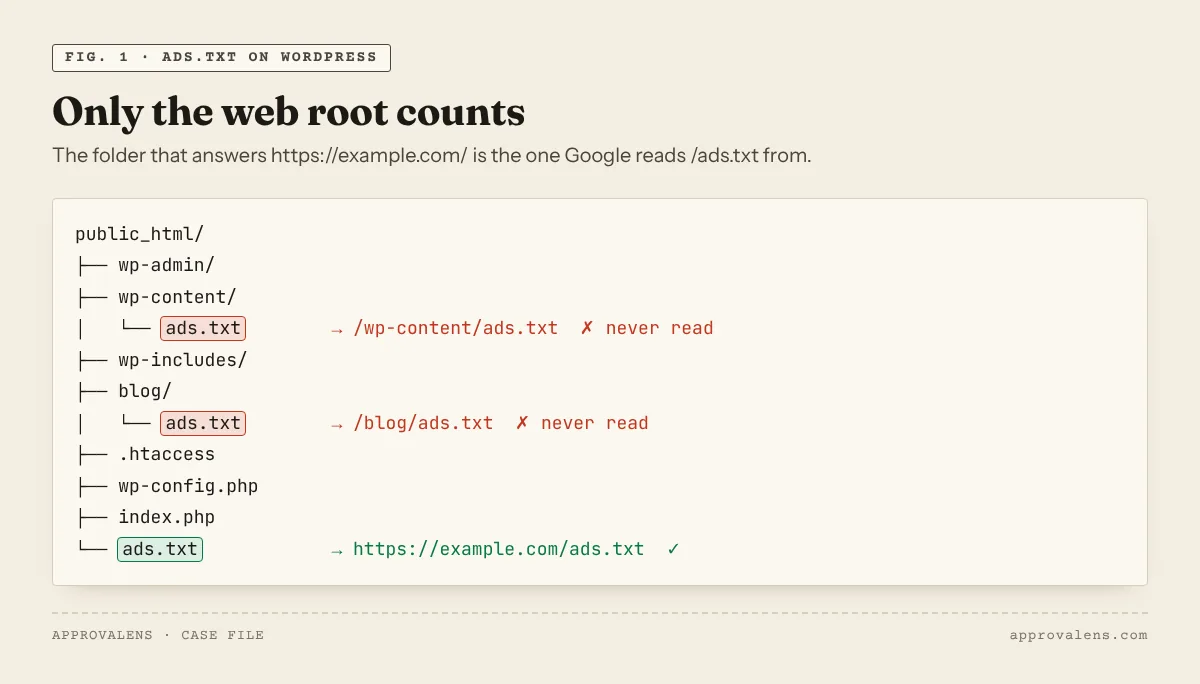
example.com/ counts.Method 2: a plugin
AdSense's own FAQ suggests this route: "Consider using a plugin to create your ads.txt file in WordPress. If you already use a plugin to place ads, it might include a feature to create your ads.txt file" (ads.txt FAQ).
A widely used dedicated plugin is Ads.txt Manager by 10up. After activating it, go to Settings → Ads.txt, paste your lines and save. The plugin serves the file from WordPress, "eliminating the need to upload a file" (plugin page).
Site Kit by Google places the AdSense code for you, but its documentation doesn't describe an ads.txt feature, so don't assume it creates one (Site Kit AdSense docs).
Why a physical file overrides every plugin
A plugin's ads.txt isn't a file on disk. WordPress builds it when the request reaches PHP. But WordPress's standard rewrite rules only send a request to PHP when no real file matches the path, so an ads.txt on disk is served directly and the plugin is never asked. The Ads.txt Manager page says the same thing in its own words: if a file already exists in the web root, "changes you make in WordPress admin will not overwrite contents of the physical files."
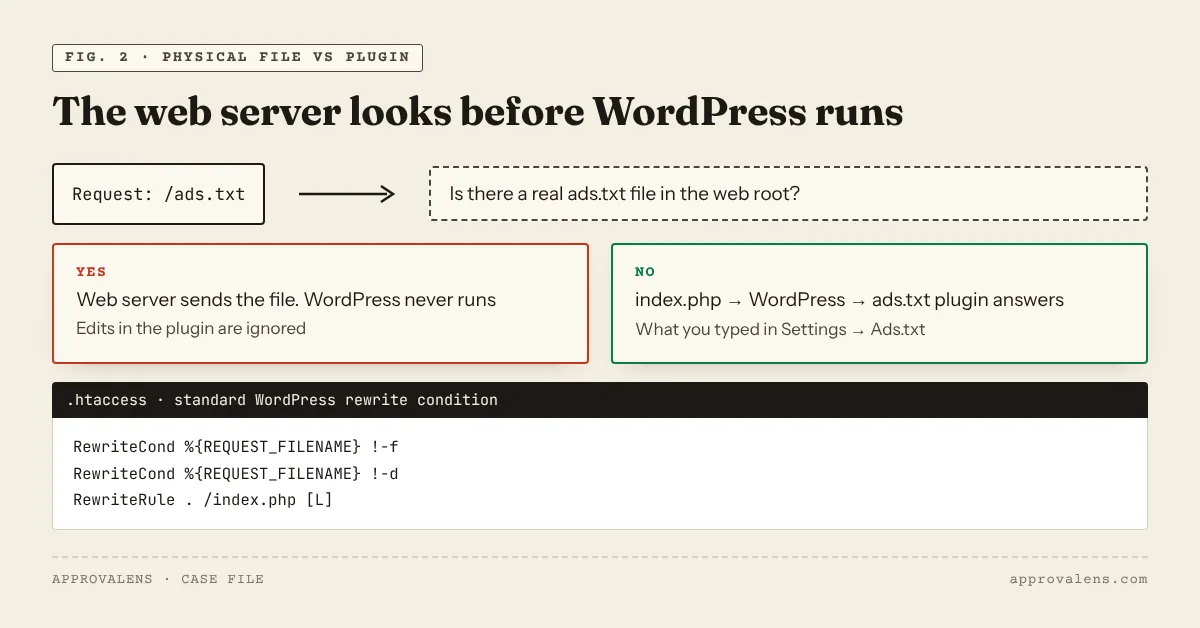
That causes the most common WordPress ads.txt mystery: "I added the line in the plugin, but AdSense still says it's missing". Some other plugin or an old network created a file years ago. Fix it by deleting or renaming the physical file, or by giving up the plugin and editing the file instead. Never keep two sources.
Method 3: WordPress.com
WordPress.com has its own rules (manage your ads.txt):
- Sites without a plugin-enabled plan "will not need to customize ads.txt, as ads.txt is handled automatically by WordAds."
- For AdSense on a plugin-enabled plan, WordPress.com points you to the same Ads.txt Manager plugin (Settings → Ads.txt), or to uploading the file "to the root directory of your site" over SFTP.
Adding the AdSense code itself is possible from the Personal plan upward (adding code to headers). The rest of the WordPress setup is in the WordPress AdSense guide.
Check it yourself
curl -sI https://example.com/ads.txt | grep -iE "^HTTP|content-type"
curl -s  https://example.com/ads.txt
curl -sI http://example.com/ads.txt | grep -iE "^HTTP|location"
You want 200 (or one redirect to the HTTPS root), text/plain, and your Google line with no HTML around it. The ads.txt checker runs the same checks and compares the publisher ID with the AdSense code on your pages.
| What you see | Likely WordPress cause | Fix |
|---|---|---|
| Your theme's 404 page | No file and no plugin, or the file is in a subfolder | Upload to the web root, or activate a plugin |
| Old lines from a network you no longer use | A physical file overrides the plugin | Delete or rename the file |
| HTML around your lines | A caching, maintenance or security plugin intercepts the URL | Exclude /ads.txt from that plugin |
| 403 Forbidden | A security plugin or host firewall blocks bots | Allow /ads.txt and verified Google crawlers |
| Blocked in robots.txt | A rule like Disallow: /ads also matches /ads.txt |
Add Allow: /ads.txt, test in the robots.txt tester |
www works, bare domain doesn't |
Redirect missing between hostnames | Redirect the bare domain (cPanel guide) |
After a fix, give Google time. Changes "may take a few days", up to a month for sites with few ad requests (ads.txt guidance).
When the file looks right, run the free scan. It fetches ads.txt over HTTP and HTTPS, with and without www, and checks the rest of your WordPress site at the same time.
Spotted something out of date or wrong? Tell us and we'll correct it.
Read this guide in Turkish →Check it on your own site. Free, no sign-up.
Free tools for this
Free scan
Check your own site
Free scan: readiness score and every issue, usually in a few minutes.